Claude office suite guide: choose Sheets, Docs, Slides or Whiteboards
Choose the right Claude artifact for a work task. Compare access, outputs and handoffs, then use a checked project-review brief to connect a sheet, report and presentation.
 Ofox

Choose Claude Sheets for an editable tracker, Docs for a written deliverable, Slides for a presentation, Whiteboards for organizing an unresolved idea, and Data for questions backed by connected business data. Choose the output first. A polished document is not a substitute for a working spreadsheet, and a static chart is not a live dashboard.
“Claude office suite” is a useful description of these related capabilities, not a separate subscription or proof that Claude replaces every Microsoft 365 workflow. The November 10, 2026 announcement added Sheets and Whiteboards and introduced Claude Data, previously Dashboards, alongside existing document and slide capabilities. Read the official product announcement.
This guide was checked against official documentation on November 12. The workflow example is an original synthetic exercise with locally verified numbers; it is not a claim that we generated and exported all of these artifacts in Claude. We separate documented features from the prompts and acceptance rules we recommend.
Match the artifact to the work
| Deliverable | Starting artifact | What to inspect before accepting it |
|---|---|---|
| A tracker people will update | Sheets | Source rows, formulas, dates and the recipient’s export |
| A decision memo or project report | Docs | Claims, evidence, recommendations and unresolved questions |
| A presentation for a meeting | Slides | Narrative, editable elements and exported slide readability |
| A map of ideas before choosing a plan | Whiteboards | Missing dependencies, invented assumptions and actual decisions |
| A chart answering a business-data question | Data | Query definition, access, date range and refresh time |
The table describes tasks, not a ranking. A sheet can help calculate the numbers for a report; a report can help organize a presentation. That does not mean those outputs automatically share a live data connection.
If your immediate question is whether to migrate an existing workbook, start with Claude Sheets vs Excel. If you want a bounded first exercise, use the project-tracker tutorial. This page connects those workflows rather than repeating their detailed spreadsheet instructions.
Access is different for each template
Anthropic’s current artifact plan matrix includes Docs, Slides and Design templates on Free and paid plans. Sheets and Whiteboards are paid-plan beta; Data is also on paid plans. Availability still depends on the relevant capability and organization settings. “Included in a plan” does not mean unlimited usage.
Start on web or desktop when evaluating the full workflow. Do not infer that every template has identical mobile editing capabilities. In particular, the Sheets guide describes basic read-only mobile access. If staff need to edit the tracker from phones, test that requirement before building the process around it.
For Enterprise users, an absent template can reflect an administrator setting rather than a broken prompt. Ask the owner to check the specific feature; a general ability to chat with Claude does not establish that every artifact is enabled.
Keep three different product routes separate
There are three distinct questions people often collapse into “Claude for Office”:
- Native artifacts: you create and edit the work inside Claude.
- Integrations in existing office applications: you retain the application and its files while using Claude assistance there.
- Generated downloadable files: you ask for a file, then inspect and use it elsewhere.
Evaluate the route you intend to deploy. The existence of a downloadable .xlsx does not prove that it was created in native Sheets. An AI-written summary of a workbook does not prove that its formulas were preserved. A successful native artifact does not prove the integration in someone else’s Excel installation is available.
This distinction also applies to troubleshooting. If the failure is an API response in a coded tool, a web-app settings change may be irrelevant. Our Claude artifact-schema 400 guide covers that specific integration error; it should not be used as a remedy for a missing Sheets or Slides template.
A practical workflow: turn a tracker into a weekly review
Use the six-task CSV and handoff outline. The reporting date is November 12, 2026, and all amounts are USD. The independent fixture check gives a 1,300 budget, 480 spent and 820 remaining. T002 and T006 are overdue and incomplete. T002 is overspent by 40; T006 lacks an owner.
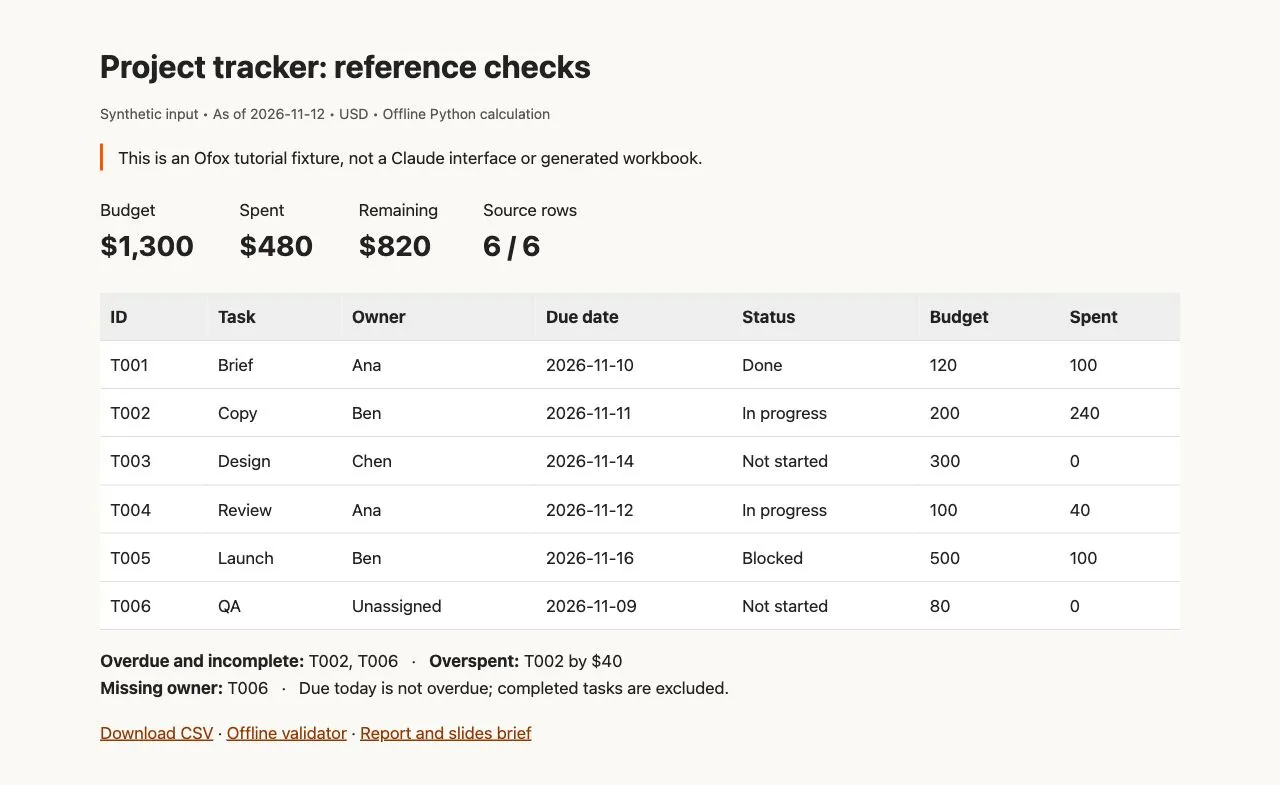
This is our local reference report, not a Claude screenshot. It establishes the example’s input and arithmetic, not the success of an artifact-to-artifact handoff.
Stage 1: verify the sheet
Create the tracker and reconcile it with the expected values in the tutorial. Keep task IDs attached to exceptions. Do not proceed to the report while the source count or totals are wrong: attractive prose can hide a missing row.
Record a source filename, snapshot date and checked totals in the handoff. Treat this as an explicit snapshot. The current Sheets documentation says sheets cannot act as a live data source for Docs, decks or dashboards. If numbers change later, deliberately regenerate or revise downstream outputs and recheck them.
Stage 2: write the decision memo
Use the verified snapshot, not an unreviewed first draft, as the input to Docs:
Create a weekly project-review memo from this verified snapshot.
Date: 2026-11-12. Currency: USD. Six tasks.
Budget 1300; spent 480; remaining 820.
Overdue and incomplete: T002 and T006.
Overspent: T002 by 40. Missing owner: T006.
Blocked task: T005; its due date is later than the reporting date.

Separate observed facts, proposed actions, and unanswered questions.
Retain task IDs beside every exception. Do not invent owners,
causes, approvals, savings or completion dates.
End with decisions required and a source appendix naming tasks.csv.
Inspect each sentence that assigns a cause. “T002 is overspent by 40” is supported by the fixture. “The designer exceeded the budget because of scope creep” is not: no reason for overspending appears in the input. Ask for the latter to become an unanswered question, not a confident explanation.
For reports that incorporate external research, use the sourced market-research workflow to maintain the distinction between source evidence and recommendations.
Stage 3: make a presentation from the approved memo
Use the approved memo and the same snapshot to request five slides:
Create an editable five-slide project-review deck from this memo.
1. Purpose and reporting date.
2. Budget, spent and remaining, with USD units.
3. Overdue incomplete tasks, with IDs.
4. Decisions required: resolve the blocker, assign the missing owner,
   and review the overspend. Label these as proposals.
5. Next review and evidence appendix.

Use one clear takeaway per slide. Preserve all supplied figures.
Do not add performance claims, stock testimonials or invented data.
Keep text and charts readable when exported.
Review the deck in the target presentation application after export. Check that all five slides exist, labels are readable and the currency and date remain visible. Edit a text element to confirm the kind of editability your recipient needs. If only an image moves, that is not the same as editing the underlying text or chart data.
For a document-to-presentation workflow with existing source files, see AI PDF to editable PowerPoint. Its file-level checks complement this artifact selection guide.
Stage 4: handle changes explicitly
Suppose T002’s spending changes from 240 to 180. The new totals are 420 spent and 880 remaining, and the overspend disappears. The overdue status does not change. Revise the sheet, memo and slide deck deliberately, then verify that all three contain the same snapshot date and figures.
Keep the original and revised versions until the new handoff is accepted. This is a process recommendation, not a claim that Claude automatically synchronizes every output. The practical benefit is knowing exactly which deliverables become stale when the source changes.
Where Whiteboards fits
Use Whiteboards before the plan is settled: group ideas, map alternatives and identify missing steps. Anthropic documents shared boards and conversion into a document or deck. It also notes that boards do not use context from connected apps. A brainstorm therefore needs its relevant evidence supplied on the board rather than assumed to arrive from every connected service. See the Whiteboards guide.
A useful board request for the example is: “Separate the unresolved decisions about T002, T005 and T006; list what evidence we need, without assigning owners or approving additional budget.” The output should keep decisions open where the input leaves them open. The next artifact is a decision memo once someone resolves those questions.
Meetings is not a prerequisite for this workflow. The November 10 announcement describes it as coming soon. We have not verified Meetings access in an account; check current availability separately before planning a meeting-dependent process.
When to use Data instead of a static sheet
Claude Data is intended for questions against connected data sources. Its charts expose the query and last refresh time; refreshing occurs when opened and due, rather than a guaranteed background schedule. Live sharing and certified queries are beta features. The Data guide explains those distinctions.
Use Data when the actual question is “what does our current source system say?” and the needed connection is available. For a one-off six-row fixture, a dashboard connection adds little. For recurring business reporting, an uploaded CSV may become stale too quickly.
Before distributing a dashboard, check its definition of the metric. Does “revenue” mean paid invoices, booked sales or all opportunities? Does the date filter use invoice date or payment date? A query that runs successfully can still answer the wrong question. Also inspect access: the documentation warns that live sharing can expose results using the owner’s source access. Share only with the intended audience after checking what the dashboard actually reveals.
A delivery checklist for the whole workflow
Accept the work when the original inputs can be traced, numbers reconcile, proposals remain separate from decisions and the recipient can open and use the final files. Record which checks were performed in the native artifact and which were performed after export. Do not mark an entire workflow verified because one stage looked correct.
Ofox publishes this guide. If you are comparing task environments, start in Ofox Chat with the same synthetic brief and inspect the actual deliverable against the same criteria. This is an alternative place to evaluate your task, not a claim that Ofox includes Claude’s native artifact products or their access entitlements.