Codex Desktop
Use this guide after configuring your provider. Check the configuration actually opened by Codex Desktop instead of assuming a successful CLI setup also verifies the desktop app. Custom configuration locations and application versions can affect which settings are used.
Set up faster with Ofox Desktop. On an Apple silicon Mac, Desktop can detect this tool, back up its current configuration, and apply an Ofox API key and compatible model. Open Ofox Desktop .
For supported devices and clients, Ofox Desktop provides a separate setup option. Ofox Desktop and Codex Desktop are different applications. Check Ofox Desktop’s compatibility requirements before downloading.
Verify the desktop app is configured
If you want to confirm the desktop app has picked up the CC Switch configuration, follow these steps:
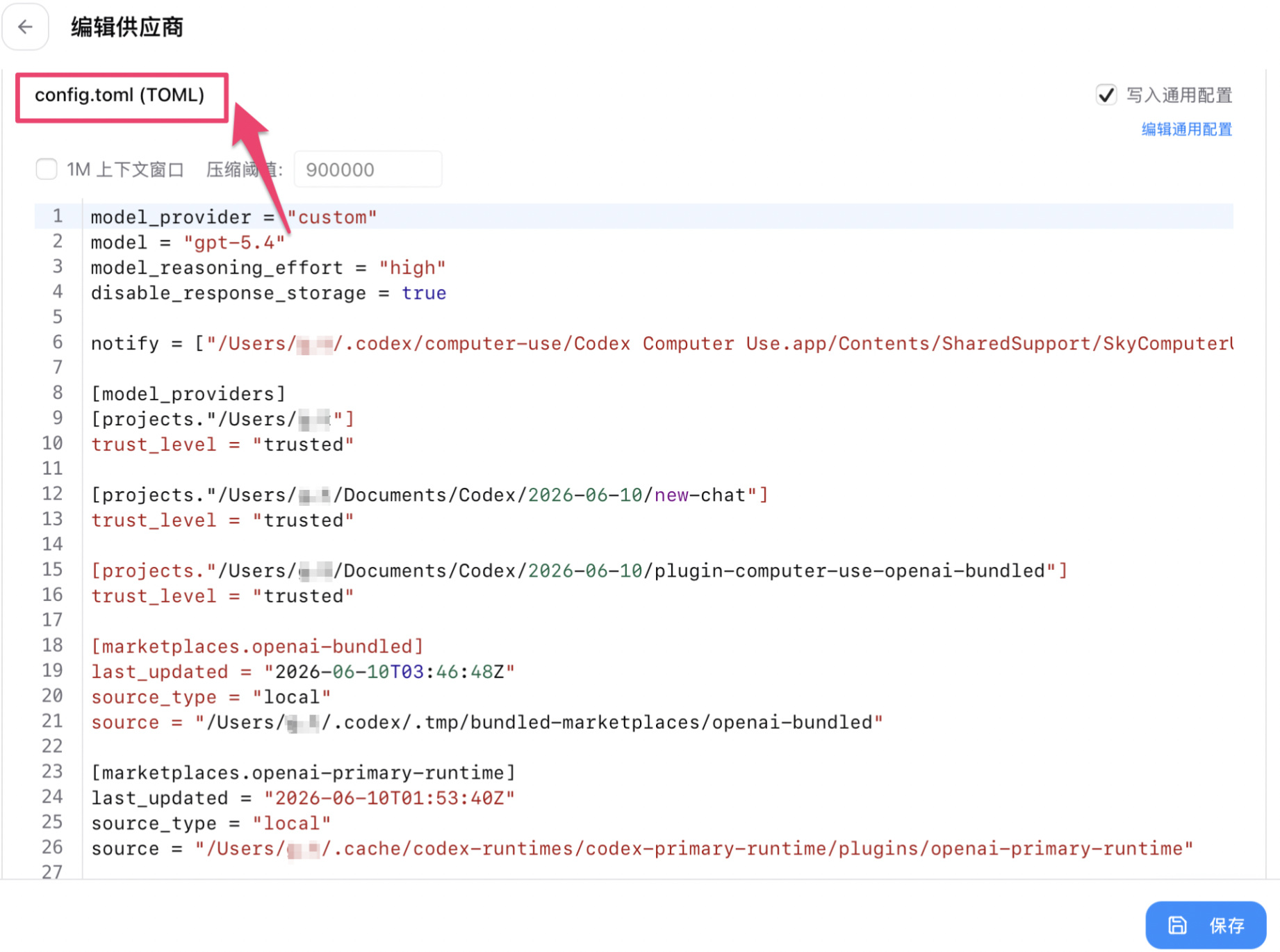
Step 1: View config.toml in CC Switch
Open CC Switch, click the provider entry to open the edit page, then switch to the config.toml (TOML) tab at the top to see the current written configuration.
Step 2: Open Codex Desktop’s config.toml
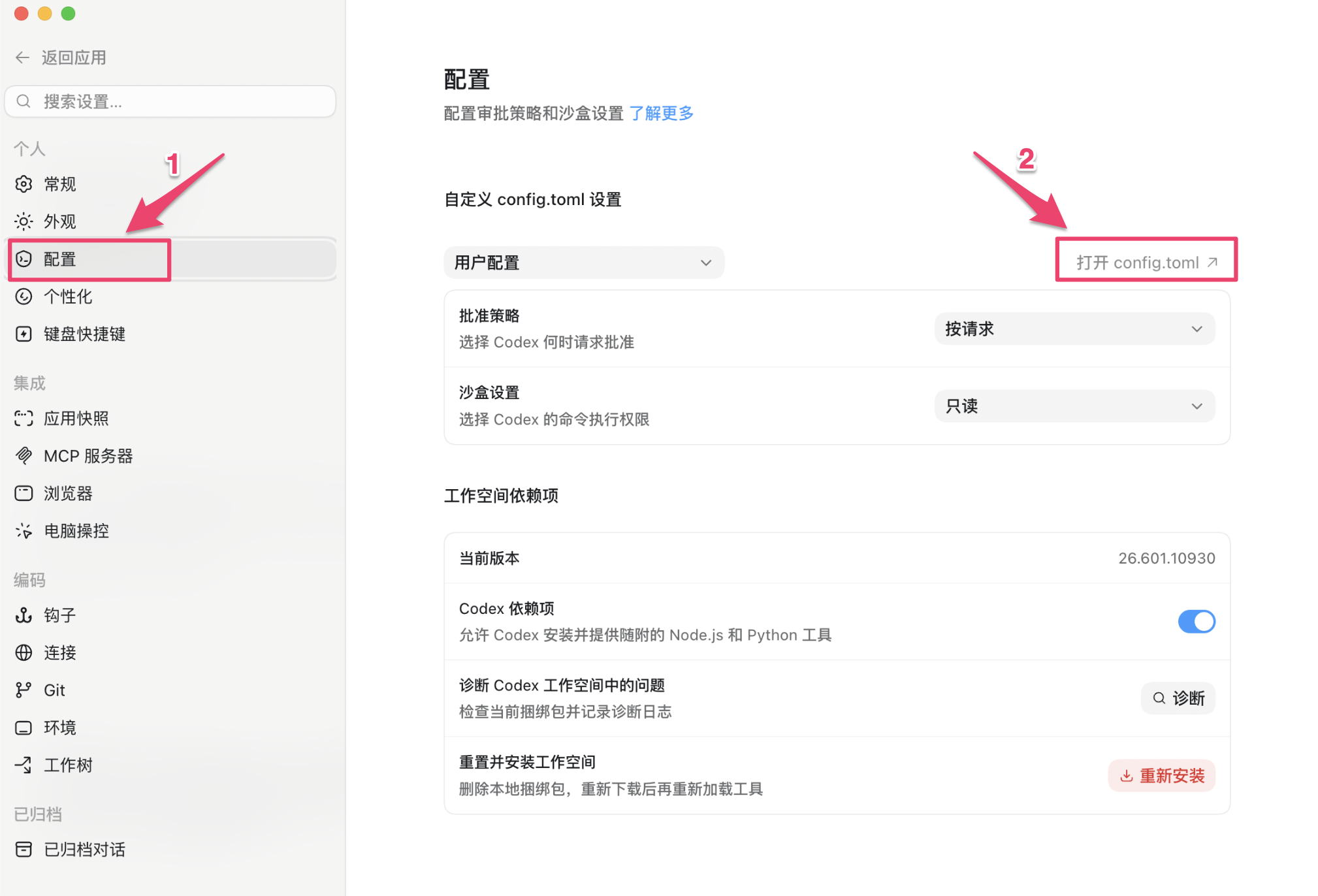
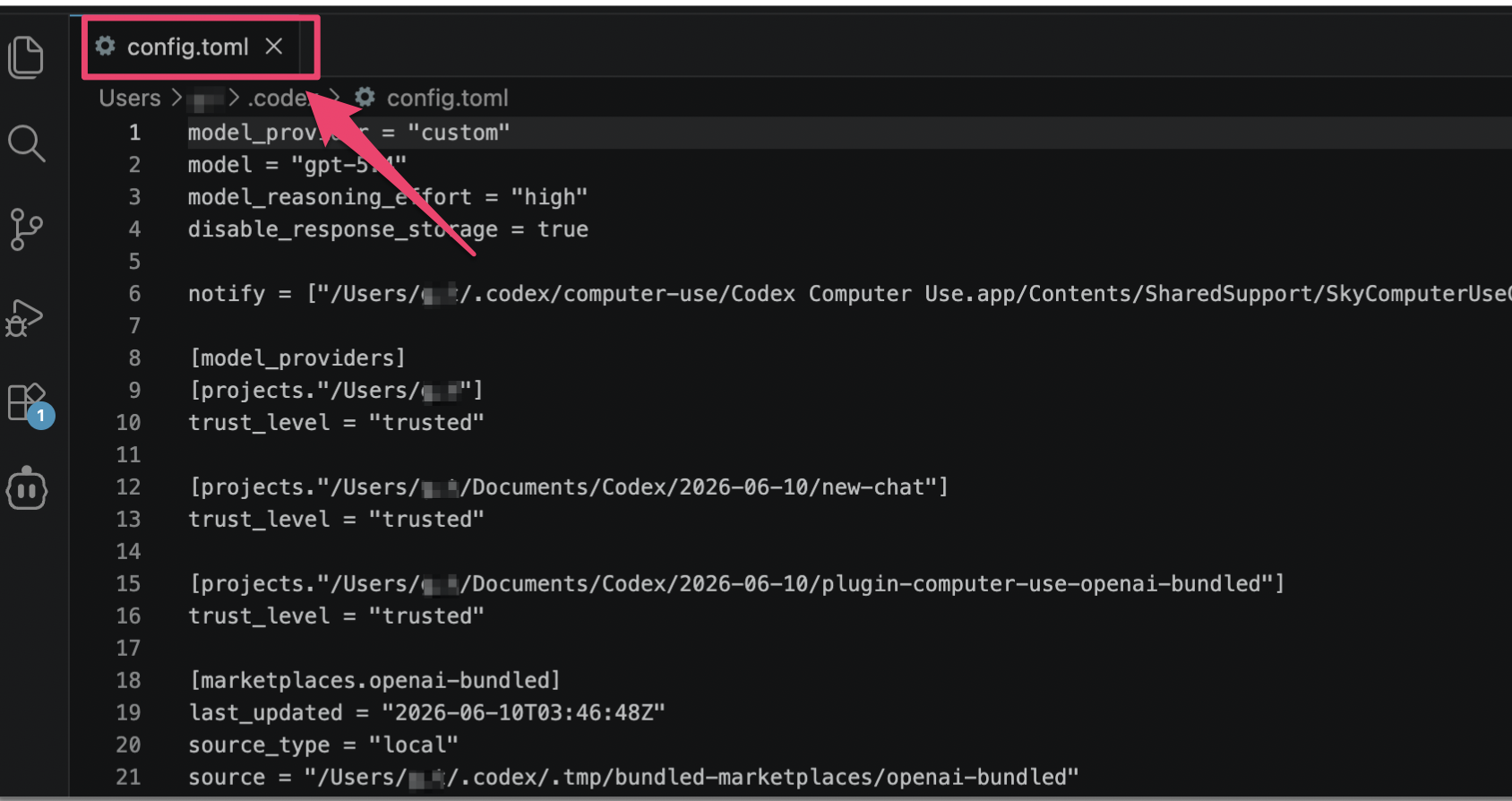
Open Codex Desktop, go to the Settings menu on the left, then click the Open config.toml button in the top-right. The file will open in your default editor.
Step 3: Compare the two configs
Compare the selected model, model_provider, and that provider’s base_url with the intended configuration. Matching files are a configuration check, not proof that a request reached Ofox.
Step 4: Send a message to verify
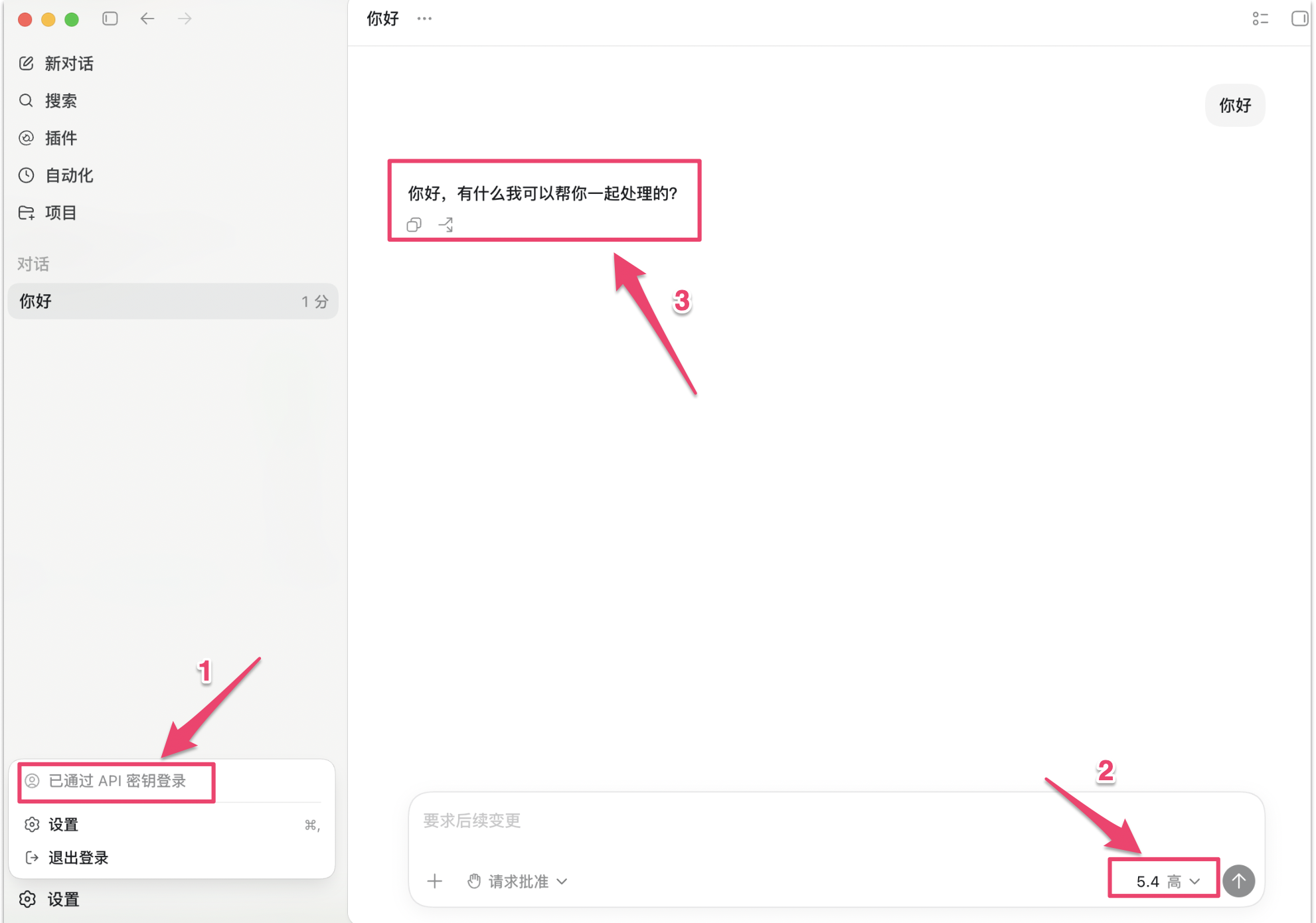
Start a new conversation and send a short request such as “Reply with OK only.” This is a billable model request under your account’s applicable pricing. Then open your Ofox usage records and match the request time and model. If no matching record appears, check the selected provider, account and active configuration before repeating requests.
A response and a matching usage record verify this request path. They do not independently prove model identity or verify tool calling, image input or structured output.
Troubleshoot the first request
| What you observe | What to check | What to do next |
|---|---|---|
| CLI works, Desktop does not | Active configuration, selected provider and model in each client | Compare the settings opened by each client; restart the affected client after saving and test a new conversation |
| Authentication error | The selected provider’s credentials and the account that issued them | Replace stale credentials through your normal configuration flow; never paste keys into a support ticket |
| Model or endpoint not found | Exact model ID, endpoint and protocol in the provider guide | Correct the mismatched field; do not append another /v1 to a base URL that already contains it |
| A reply appears but no matching Ofox record | Selected account, provider and request time | Verify the actual route; a model’s answer to “who are you?” is not routing evidence |
| Text works but a tool fails | The selected model’s supported capabilities and the tool error | Test that capability separately in a disposable project; save a redacted error and request identifier if available |
Before changing settings, keep a local backup of the configuration. If setup regresses, restore the last working configuration rather than stacking changes from multiple configuration tools.
For support, record the client version, operating system, model ID, request time and timezone, HTTP status, and request identifier if available. Remove API keys, authorization headers, personal prompts and private file contents.