Make a YouTube thumbnail with an AI background and editable text
Generate a background with room for a title, add editable text in an image editor, and check legibility before exporting your YouTube thumbnail.
 Ofox
Ofox 
For a thumbnail you expect to revise, generate the background separately and add the title as editable text in an image editor. You can then change a word or fix a spelling error without regenerating the entire image.
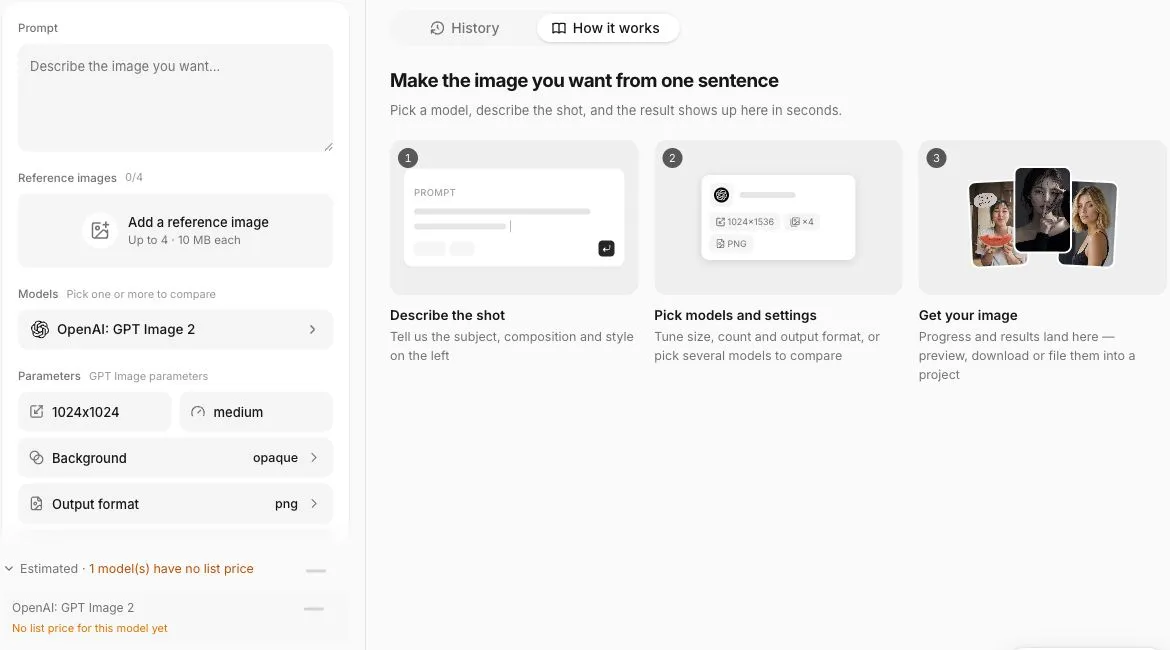
Use the Ofox image tool for the background and your existing editor for text placement. This workflow does not assume Ofox has a text-layer editor. The screenshot shows the interface checked on September 20, 2026; the prompt below is an untested starting example.
Write the message before generating the background
Pick one thing the video actually explains. For a coffee dripper demonstration, a title such as “Set up your first pour-over” identifies the task. A claim such as “Twice as good” needs evidence and a clear comparison; do not add it merely to make the thumbnail louder.
Decide where the title will sit. A subject on the right leaves the left available for text. Keep any real product logo separate when exact reproduction matters.
Generate around the empty space
Choose one model and check its supported landscape sizes. Use your own product photo as a reference if needed, but compare the output with that photo because reference input does not guarantee identical product details.
Place a coffee dripper on the right side of a bright kitchen table. Leave a simple, uncluttered area on the left for a title. Use natural photographic lighting. Do not generate any lettering, numbers or logos.
Check the cost and selected models before submitting. If the subject fills the whole result, revise the composition request rather than covering an important feature with text.
Add the title as a text layer
Download the accepted background and open it in your editor. Add the title in the reserved area. Save a layered project before exporting a flattened image.
Start with a readable font and a short phrase. If the background competes with the lettering, add a plain backing behind the text or simplify the image. More outlines and decorative elements are not always the answer.
For multilingual thumbnails, keep the background reusable and save separate editable titles for each language. Check the selected font actually includes the required characters. Do not assume an English layout will fit a longer translated phrase.
Preview small, then verify the export
Shrink the preview until it resembles a thumbnail in a feed. Can you identify both the subject and the message? If not, reduce the text or improve its contrast. This checks legibility; it does not predict a click-through rate increase.
At upload time, verify the file against YouTube’s current thumbnail requirements. YouTube’s title and thumbnail guidance also recommends readable fonts and accurate representation of the video.
Keep the background, editable project and final export as separate files. For a product-focused background, use the product photo checklist. If you need automation rather than the browser workflow, see the image API guide.
Frequently Asked Questions
- Does this require an API key?
- No. The background step uses the browser creation tool; text is added in an external editor.
- Will this improve CTR?
- It may make the design easier to revise and read, but no CTR improvement is guaranteed. Evaluate actual audience data after publication.