Merge multiple Excel files with AI without losing rows or leading zeros
A worked three-file Excel merge: map different headers, remove exact duplicates, isolate conflicting amounts and reconcile every row. Includes sample XLSX files.
 Ofox

To combine Excel files with AI, define the column mapping and duplicate rule before uploading, then reconcile the downloaded workbook against the inputs. A smaller output is not evidence of a successful merge: valid orders can disappear when the assistant treats every repeated ID as a duplicate.
We tested this in Ofox Chat on November 4, 2026 using Balanced. Three synthetic spreadsheets produced one downloadable workbook with confirmed records, duplicates, conflicts, missing values, a field map, reconciliation and a bilingual README. We independently checked the downloaded cells against the source files. This is an Ofox editorial exercise, not customer data or a benchmark of accuracy at scale.
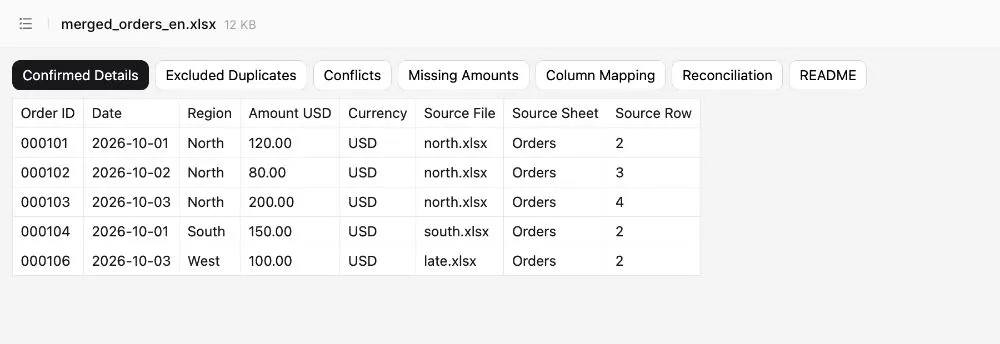
The English workbook is a language adaptation in the same conversation, not another independent merge test. English XLSX and Russian XLSX retain the original data.
Download the three-file example
Download north.xlsx, south.xlsx and late.xlsx. Each contains an Orders sheet with three data rows. The original generated workbook preserves the Japanese sheet names used in the test and includes Japanese and Russian explanations in README.
| Input | ID / date / region / amount headers | Known USD total |
|---|---|---|
| north.xlsx | Order ID / Date / Region / Amount USD | 400 |
| south.xlsx | order_no / sale_date / area / revenue_usd | 480 |
| late.xlsx | ID / Date / Region / USD | 375 |
All nine rows are transactions in the same currency. The headers differ, but the business meanings match. This is append rows vertically, not join columns by an order key. A join is appropriate when one table supplies orders and another supplies customer attributes; using it here could multiply matching rows or change the table’s meaning.
The example deliberately includes three traps: 000102 appears twice with the same fields and USD 80; 000105 appears with USD 250 and USD 275; 000107 has no amount. IDs are six-character strings. A leading zero is part of the identifier, not decoration.
Decide whether AI or Power Query fits the job
AI is useful for a one-off collection whose headers and exceptions need explanation. A repeatable monthly folder import with a stable schema is often better handled by a maintained Power Query transformation. Microsoft’s folder-combine documentation describes applying a sample-file transformation to files with the same structure. Filter the folder contents and review the sample rather than assuming every file belongs in the import.
Neither option decides business rules for you. Establish the key, currency, date convention and conflict policy with the data owner. If the amount columns mix currencies, stop and separate currencies or supply an approved conversion rule. Do not total them as USD merely because the output header says USD. For broader analysis after cleaning, follow the AI Excel analysis tutorial.
Set the rules and upload copies
Keep the originals unchanged. Remove unrelated sheets and personal information that the task does not require; use only files you are authorized to process. Note the filenames, relevant sheets and input row counts before uploading.
In our English interface, we opened Chat, used Add → Upload from computer, selected all three XLSX files and left the mode on Balanced. Confirm that all three attachment names are visible before sending. Sign-in and sufficient balance are prerequisites; generation is not promised to be free or to have a fixed price.
The original request was in Japanese. This English adaptation preserves its operational instructions:
These are synthetic tutorial files. Read the three attached Excel files
and append their rows vertically; do not join tables horizontally by ID.
Record the header mapping. Preserve order IDs as text with leading zeros.
All amounts are USD.
Remove only exact duplicate business records. If the same ID has different
amounts, quarantine both records as a conflict; do not pick the latest file.
Keep missing amounts blank and place those rows in a separate sheet.
Preserve source filename, source sheet and original Excel row number.
Create one downloadable XLSX containing confirmed records, excluded
duplicates, conflicts, missing values, field mapping, reconciliation
and a README explaining the decisions.
Reconcile input counts and known-amount totals against every output group.
Do not browse the web or generate images. Do not overwrite the inputs.
For your own data, specify whether “exact” means equality across every business field or a named subset. Source filename must not be part of the equality test: otherwise the same record in two files will never count as a duplicate. Also decide whether whitespace trimming and case normalization are allowed. Two similar-looking customer names are not automatically the same customer.
Check what the workbook actually contains
The downloaded file contains seven sheets. The following names let you inspect the original Japanese output without guessing:
| Sheet | Purpose | Rows | Known USD |
|---|---|---|---|
| 確定明細 | Confirmed records | 5 | 650 |
| 重複除外 | Excluded exact duplicate | 1 | 80 |
| 競合 | Both conflicting records | 2 | 525 |
| 欠損 | Missing amount, kept blank | 1 | 0 known; amount missing |
| 列対応 | Source-to-output header mapping | 12 mappings | — |
| 検算 | Input totals and partition checks | — | — |
| README | Japanese/Russian explanations | — | — |
The confirmed IDs are 000101, 000102, 000103, 000104 and 000106, with amounts 120, 80, 200, 150 and 100. The duplicate is south.xlsx row 4; its retained counterpart is north.xlsx row 3. Both 000105 entries remain visible in the conflict sheet, from south.xlsx row 3 and late.xlsx row 3. The missing amount for 000107 remains empty.
The original run returned these partitions correctly. That finding is limited to these nine rows. It does not establish that the assistant will handle arbitrary merged cells, formulas, hidden sheets, regional date formats or large workbooks correctly.
Reconcile rows and money separately
The row check is:
9 input rows = 5 confirmed + 1 excluded duplicate + 2 conflicts + 1 missingThe known-money check is:
1,255 known input USD = 650 confirmed + 80 duplicate + 525 conflictsThe missing row contributes no known amount. Its category’s known-amount sum can be zero while the individual missing value remains unknown. Do not reinterpret that zero subtotal as a zero-dollar order.
USD 650 is the confirmed subtotal after quarantine, not the complete revenue of the business. USD 1,255 is the raw known-input sum, which still includes a duplicate and conflicting versions; it is not a valid sales KPI either. The conflict and missing rows need a human decision before a final business total is available.
Our file check also found a practical limitation: formula cells in the reconciliation sheet did not contain cached results. A reader that does not calculate formulas can show blanks. The file also includes model-generated static check values; we separately recomputed the partitions from the source rows. Inspect the formulas and recalculate in your spreadsheet application; do not infer a failed merge solely from a blank preview. The source dates in this example remain strings, so convert them deliberately before date arithmetic.
Repair a specific problem without redoing the entire merge
If the assistant drops exceptions or changes IDs, name the exact invariant and request a separate revision:
Revise the output workbook, preserving the original output as v1.
ID 000105 has two conflicting amounts: keep both in Conflicts and exclude
both from Confirmed until an authorized source resolves the difference.
Do not infer that late.xlsx is authoritative from its filename.
Keep 000107's amount blank. Preserve every six-character ID as text.
Return v2 plus the changed rows and updated row/known-amount reconciliation.
Do not change unrelated values.
This is a recovery template, not an additional tested run. Compare v1 and v2 before using the revision. A request for changes is not proof that only those changes occurred.
| Symptom | Check and action |
|---|---|
| Too few rows | Account for all output groups, not just confirmed records; check the selected sheets |
| Too many rows | Check whether a many-to-many join replaced append; inspect duplicate rules |
| ID becomes 101 | Read the cell type; preserve strings rather than merely applying a six-digit display format |
| Dates reverse month/day | State the source locale and explicit date format; isolate ambiguous dates |
| Total changes unexpectedly | Separate duplicates, conflicts, missing amounts and mixed currencies |
| Formula preview is blank | Recalculate in the spreadsheet app and compare against independent totals |
| File cannot be downloaded | Require an actual XLSX attachment; a table in chat is not the deliverable |
Hand off a workbook another person can audit
Before sharing, confirm that the download opens, the expected sheets exist, leading zeros remain strings, every exception has a source row and both reconciliation equations hold. Resolve conflicts against the original system or data owner, recording who decided and why. Do not silently delete the evidence once a decision is made.
Then use the confirmed data for charts and an analysis report or a work presentation. If your source is a PDF report instead of spreadsheets, the PDF-to-editable-PPT workflow adds page references and checks the exported objects.
Start in Ofox Chat with the three sample files and the prompt above. The useful outcome is a traceable workbook whose exceptions remain visible—not just a message saying the merge succeeded.