Build an AI ad campaign in Ofox: from brief to a reusable asset kit
Create a campaign brief, plan key visuals, prepare image and video prompts in Ofox, and organize a reusable set of ad assets with a delivery checklist.
 Ofox
Ofox 
An AI ad campaign needs a consistent visual idea across stills, video and the final call to action. In Ofox, start in Image to establish the key visual, move an approved reference into Video to develop motion, then keep accepted work in Projects. Assemble titles, music and final cuts in your editing software.
This tutorial is for a solo marketer building a campaign kit, rather than just animating one product photo. The example is a fictional amber pump bottle: one product reference, a warm stone setting, a detail shot and a layout with room for editable copy.
Example scope: the Ofox interface was checked on September 21, 2026. The photographic boards below are AI-generated practice artwork created separately for this guide, not Ofox output or a real client’s campaign. Interface screenshots show setup, not a completed generation test.
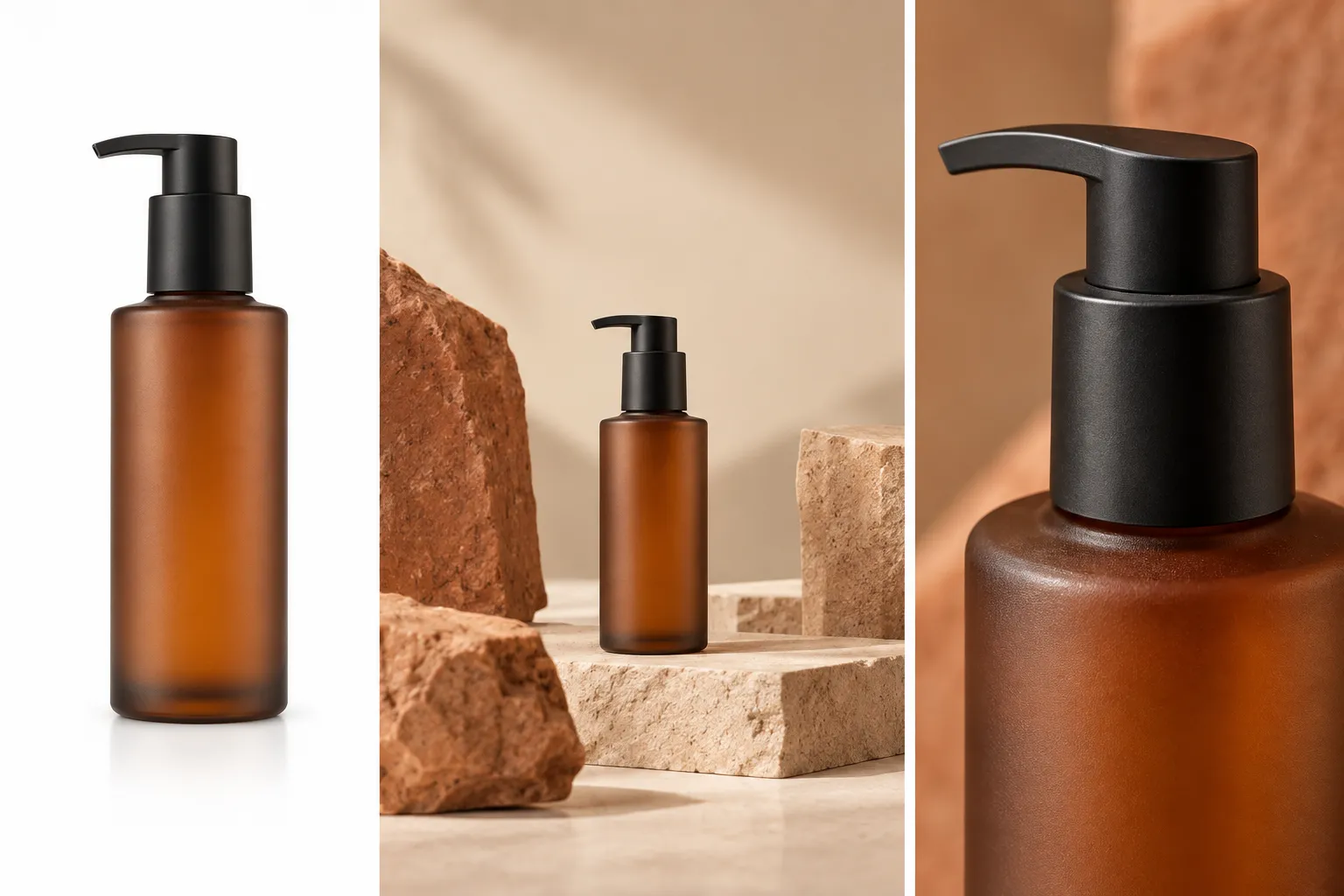 Practice art direction: identify the object, establish the setting, then choose the detail worth showing. These are concept stills, not three frames from a finished video.
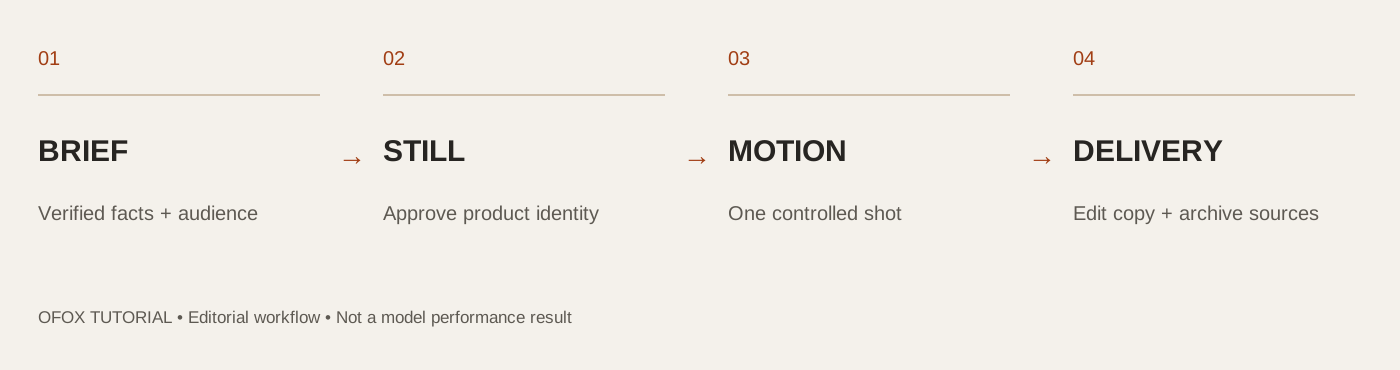 Editorial checklist for this guide; not measured model performance.
1. Turn the request into a brief you can check
“Make a premium ad” leaves too many decisions to the generator. Write the audience, the action you want viewers to take, the product facts you can substantiate and the visual elements that must remain unchanged. Keep persuasion separate from factual product claims.
For this fictional exercise, the goal is to introduce the bottle’s appearance. We are not claiming it is refillable, sustainable, leakproof or medically useful: a synthetic image cannot establish those properties. With a real product, replace the practice input with your own approved photographs and verified copy.
| Brief field | Example decision | What it controls |
|---|---|---|
| Audience | People browsing a home-accessories collection | Calm domestic setting |
| Main subject | Amber cylindrical bottle with black pump | Object identity |
| Visual direction | Warm cream, stone, soft side lighting | Campaign consistency |
| Main message | Introduce the design | No invented performance claims |
| Deliverables | One key visual, one detail still, one short motion asset | Production scope |
| Final CTA | Added later as editable text | Spelling and layout |
Download the campaign worksheet and fill it in before opening the generator. It also records asset names and approval notes, so the final handoff is more useful than a folder of unnamed downloads.
2. Prepare the reference and make the key visual
Open Ofox Image. The checked interface has a prompt field, reference-image upload and a model selector. GPT Image 2 appears in that selector with image-to-image capability. Available settings depend on the model; do not assume every image model exposes the same size or quality controls.
Upload one clear, approved product reference. A single input makes it easier to diagnose whether an unwanted change came from conflicting references or from the generation itself. Use a real single-scene photo for a real product; the contact sheet above is an art-direction aid, not a substitute for accurate source photography.
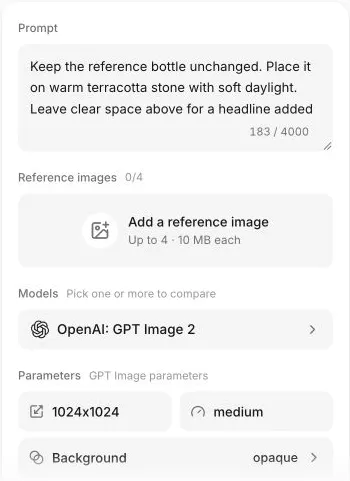 Actual English interface, cropped to exclude account information. The prompt is prepared; no completed output is implied.
Start with a narrow instruction:
Keep the reference bottle unchanged. Place it on warm terracotta stone
with soft daylight. Leave clear space above for a headline added later.
Preserve the pump shape, glass color and bottle proportions.
No new labels, lettering, props or accessories.
This prompt separates the object from its setting. It does not guarantee exact preservation. Inspect the pump nozzle, shoulder, base and any label before approving the still. If only the background needs changing, keep that as the sole change request; do not simultaneously redesign the bottle and alter the camera angle.
For background preparation, the separate product-photo background tutorial covers that narrower task. This campaign guide starts once you have an acceptable subject and a visual direction.
3. Build an asset family without inventing a different product
Write a short instruction for each asset rather than requesting “ten variations.” A detail image should reveal a feature already visible in an approved photograph. A campaign layout should preserve space for text at the intended placement. A square image and a vertical image are different compositions, not simply different file names.
For a detail asset, use a corresponding close-up reference if you have one. For a layout variant, first consider cropping or adding a plain margin in your layout tool. Regenerating the entire scene can change the product again. See crop, pad or regenerate for that decision.
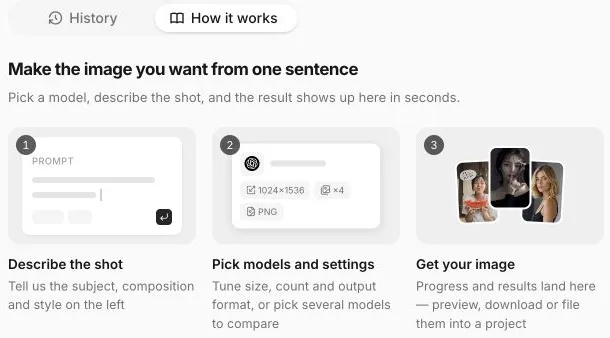 The interface separates creation from result handling. Its promotional timing text is not a measured turnaround guarantee for this tutorial.
Approve the stills together on one screen. Compare material, scale, color temperature and the side from which light falls. A convincing single image can still be a poor fit for the campaign if it changes all of those things.
4. Use the approved still to specify motion
Open Ofox Video, select Image, and upload the approved single image. The checked interface exposes a prompt, model selection and generation parameters. Seedance 2.5 was available at the time of checking. Choose the duration, aspect ratio and resolution offered for the chosen model and input mode, and review the estimate before submitting.
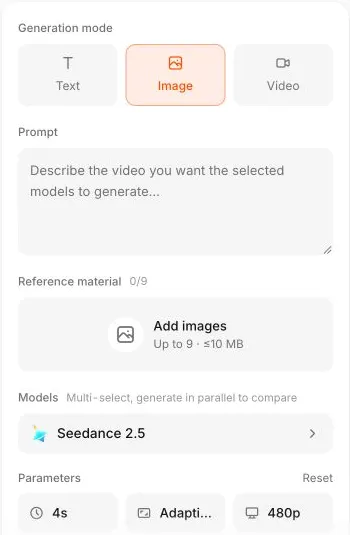 Use the reference to anchor appearance; describe motion in the prompt. Controls shown here are a dated interface example, not universal model limits.
A restrained motion prompt is easier to inspect:
One continuous shot of the reference bottle. The camera moves slightly
forward. Keep the bottle still and fully inside the frame. Preserve the
pump, glass color and proportions. Keep lighting and background stable.
No cuts, hands, new labels, added objects or on-screen text.
A dramatic orbit may reveal a back surface that your source does not document. If that surface matters to the product, obtain a real reference rather than asking the model to invent it. For a dedicated sequence of product shots, use the existing three-shot storyboard guide.
5. Review the asset, not just its first frame
Watch the complete clip at normal speed, then inspect the beginning, middle and end. Pause whenever the outline, reflection or label appears to move independently from the object. A clean opening frame does not make the rest of the clip safe to use.
Reject a clip if the pump changes shape, the bottle becomes wider during the move, or invented text appears. Simplify one variable and try again only after recording what failed. More adjectives do not fix an ambiguous reference.
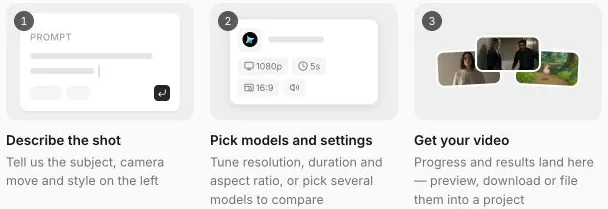 The interface describes preview, download and filing into a project. A finished campaign timeline is still assembled in your editor.
6. Deliver a reusable kit
Download accepted originals, keep the prompt and settings beside each file, and record which still fed which motion asset. Use Ofox Projects for organization, while retaining your source files and editing project in your normal asset storage.
Add headings, logos, subtitles and the CTA as editable layers in your editor. Check the actual destination’s current size and safe-area requirements instead of treating one crop as universally suitable. Watch the exported file too: composition, audio and text can change during the final edit.
A useful handoff includes the approved brief, source-image rights, accepted stills, raw clips, editable titles and a rejection log. It does not claim the whole campaign was generated inside Ofox in one click.
Frequently Asked Questions
- Can Ofox turn this brief into a finished ad automatically?
- This workflow checks image and video creation controls and the interface’s result-handling instructions. It uses an external editor for final assembly, titles and music; it does not demonstrate a built-in campaign timeline.
- Should I put the slogan inside the image prompt?
- For this workflow, add the slogan later as editable text. You can correct spelling, reposition the CTA and adapt the layout without regenerating the product image.
- Do these pictures prove GPT Image or Seedance preserved the bottle?
- No. They are labeled practice artwork. Evaluate the outputs produced from your own references, and keep the original material available for comparison.