Make a FLUX 3 Image poster with bounding boxes and targeted text edits
Plan a product poster, convert its layout to FLUX 3 bounding boxes, prepare the API request and check text, placement and one-area edits before publishing.
 Ofox
Ofox 
To make a promotional poster with FLUX 3 Image, give the product, headline and offer separate bounding boxes, append their descriptions to the prompt, and generate at the aspect ratio you designed. Then inspect the words and composition before treating the image as a publishable asset. Boxes give the model a layout to follow; they do not turn it into a deterministic typesetting engine.
This tutorial builds an original 4:5 ceramic-mug poster with a complete layout, a downloadable Python client, a one-line edit and a publication checklist. It is useful when a general prompt produces attractive images but repeatedly puts the heading over the product or makes the call to action too small.
Verification scope, October 7, 2026: we checked the official API documentation, captured the real documentation interface and tested request construction and failure handling locally. We did not run a paid FLUX generation for this article. The poster brief is an authored example; no image below is presented as our generated poster or as proof of output quality.
1. Prepare the brief before opening the generator
Download the tutorial kit. It includes flux_poster.py, the two companion API exercises and a requirements file. Use Python 3.10 or later in an empty working directory. After extracting the archive, enter the directory containing the scripts:
python3 -m venv .venv
source .venv/bin/activate
python -m pip install -r requirements.txt
On Windows PowerShell, activate with .venv\Scripts\Activate.ps1. Generation uses a BFL API key, not a ChatGPT subscription or a key assumed to work across providers. Get access through the official BFL dashboard and check current BFL pricing before enabling requests. Preparation is local; generation and another edit can incur separate charges.
Our fictional brief deliberately uses no real brand, price or discount claim:
| Decision | Value for this exercise | Why fix it now? |
|---|---|---|
| Canvas | Portrait, 4:5 | Changing shape later changes the layout proportions |
| Product | One terracotta mug, handle on the right | Gives a clear object and orientation to inspect |
| Headline | A QUIETER MORNING | Short enough to give the letters meaningful space |
| Offer line | Autumn collection | Describes the fictional collection without inventing a promotion |
| Call to action | Explore the range | Keeps the action separate from the offer |
| Finish | Warm cream paper, dark type | Creates a consistent contrast requirement |
For a real campaign, approve the words, dates and claims before generation. A model should not invent the terms of a sale. If the exact product silhouette, legal text or brand typography must remain unchanged, plan to composite those assets in your usual editor. Generating a generic mug from text does not establish fidelity to a particular SKU.
2. Turn the layout into coordinates
FLUX uses [top, left, bottom, right], with integers from 0 to 1000 measured from the top-left corner. This ordering is easy to confuse with the x-first rectangles used by many graphics libraries. The grid is normalized independently along each axis. The same box therefore maps to different pixel widths and heights on different aspect ratios. BFL bounding-box documentation.
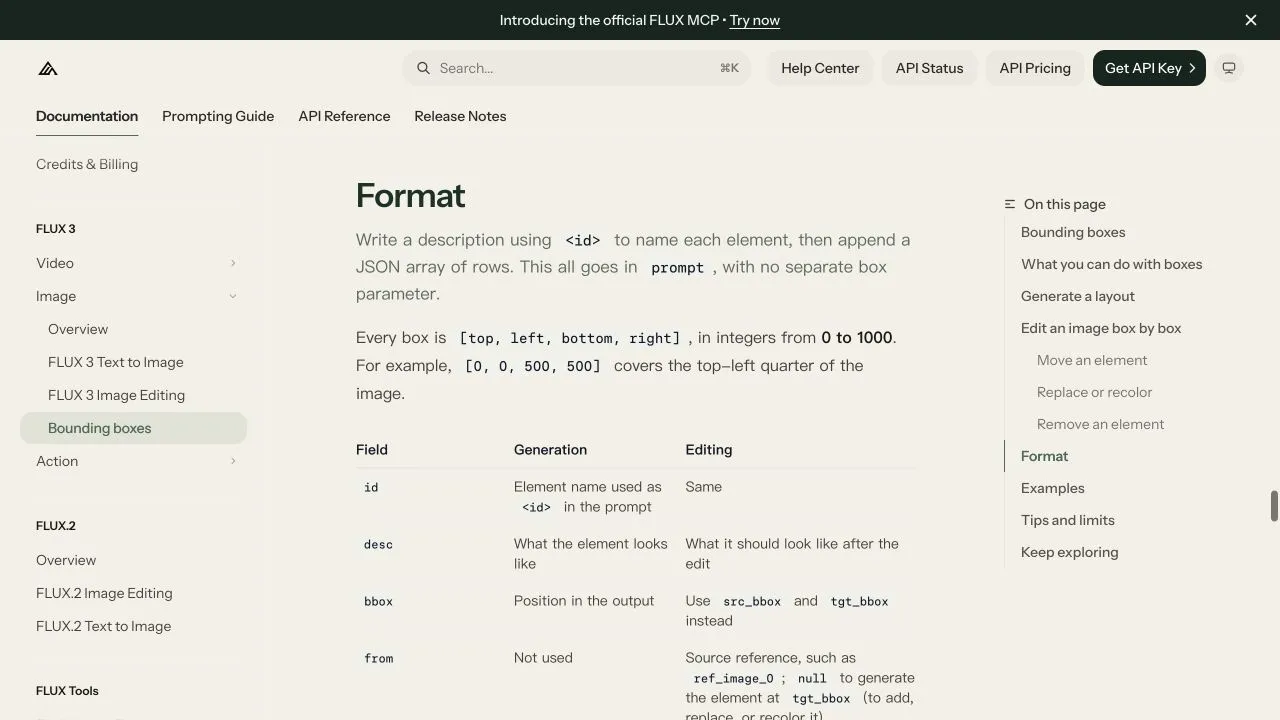
Official English documentation captured October 7, 2026. This is a field-format reference, not a screenshot of a completed generation. Source.
Use this layout for the sample:
| Element ID | Box | Intended region |
|---|---|---|
| background_1 | [0, 0, 1000, 1000] | Entire canvas |
| headline_1 | [80, 80, 230, 920] | Broad heading across the upper portion |
| product_1 | [290, 220, 720, 780] | Central product with room for its handle |
| offer_1 | [770, 100, 845, 900] | Offer below the product |
| cta_1 | [885, 240, 950, 760] | Separate lower call to action |
On an illustrative 1000 × 1250 working canvas, the product box becomes left 220, top 362.5, right 780 and bottom 900 pixels. That is a conversion example, not a promise that the 1k API setting returns those dimensions. Inspect the actual image dimensions after downloading.
Convert a pixel rectangle by dividing vertical coordinates by image height and horizontal coordinates by image width, then multiplying by 1000 and rounding. Check that top is less than bottom, left is less than right, and all four values are within range. The kit rejects boxes without a positive area or with duplicate element IDs before constructing a request.
Leave breathing room between text and the product. A nominal gap does not guarantee visual separation: letter ascenders, shadows and the handle may extend beyond the intended region. Give small type more space instead of repeatedly increasing prompt emphasis.
3. Build the prompt and inspect the request locally
The layout is text inside prompt; there is no separate bounding_boxes request property in this workflow. The kit joins a caption containing element references such as <headline_1> to a JSON array. Here is the complete original layout input:
caption = (
    "A vertical promotional poster on a warm cream paper background <background_1>. "
    "A single terracotta ceramic mug <product_1> is centered below the large headline <headline_1>. "
    "One short offer line <offer_1> and a small call to action <cta_1> sit below the mug. "
    "Clean studio lighting, calm editorial design, no brand logo, no additional text."
)
rows = [
    {"id": "background_1", "bbox": [0, 0, 1000, 1000],
     "desc": "Flat warm cream paper with subtle grain."},
    {"id": "headline_1", "bbox": [80, 80, 230, 920],
     "desc": 'Large dark serif text reading exactly "A QUIETER MORNING".'},
    {"id": "product_1", "bbox": [290, 220, 720, 780],
     "desc": "One terracotta ceramic mug, three-quarter view, handle on the right, no lettering."},
    {"id": "offer_1", "bbox": [770, 100, 845, 900],
     "desc": 'Dark readable text reading exactly "Autumn collection".'},
    {"id": "cta_1", "bbox": [885, 240, 950, 760],
     "desc": 'Small dark text reading exactly "Explore the range".'},
]
Run preparation without a key:
python flux_poster.py --out prepared-posterThe expected result is prepared-poster/request.json and a message saying no API request was sent. Open the file and check aspect_ratio: "4:5", resolution: "1k", grounding: false, all five IDs and all three exact text strings. A valid JSON file demonstrates that the request can be serialized; it does not demonstrate that the model will spell those strings correctly.
We disable grounding because this fictional brief already supplies the content. That is an exercise choice, not a general recommendation to disable it for every task. The FLUX 3 API overview documents the generation endpoint and options. Keep the first run simple: do not add reference images, change resolution and rewrite the layout simultaneously.
4. Generate, retain the job and download the result
Set BFL_API_KEY in your local environment without putting it in the script, a screenshot or a repository. Then use a new directory:
python flux_poster.py --run --out live-posterThe client sends the payload to https://api.bfl.ai/v1/flux-3-image, saves the returned job to job.json, and polls the returned URL. On a successful Ready result it downloads the image and saves an actual PNG as poster.png. It also prints the real pixel dimensions. The full network code is in the kit so timeout and error handling are not hidden behind an ellipsis.
The script uses a five-minute polling deadline; an in-flight network request can finish after that deadline. A local timeout does not prove the remote job failed. If job.json exists, resume the same job:
python flux_poster.py --resume --out live-posterResume does not submit a new generation. It updates the saved last status and, if ready, the image for that job. Keep a copy before resuming if you need an immutable record. If submission itself timed out and no job was saved, inspect the provider dashboard before sending another billable request. The official results guidance documents result retrieval; temporary image links must be downloaded promptly rather than used as permanent blog assets.
5. Change the offer while preserving the layout
For the exercise, change “Autumn collection” to “Weekend collection.” The edit uses the downloaded image as ref_image_0. Its offer row has from: null and src_bbox: null, with the target box unchanged. Each other element keeps its source reference and matching source and target boxes.
Inspect an edit request before sending it:
python flux_poster.py --edit live-poster/poster.png --out prepared-editThen, if the prepared request matches your intention, generate into another new directory:
python flux_poster.py --edit live-poster/poster.png --run --out live-editThe script embeds the source image in the request. Do not publish the resulting request.json if it contains private or unlicensed material. For a real product photo, the source-image permission still matters even when the output will be public.
The keep rows express what should remain stable. They are not evidence that every other pixel stayed identical. Compare the source and edit at the same size. Check the mug handle, headline, shadows and margin as well as the changed line. If the product was altered, reject the edit or composite the approved text in a conventional editor; do not accept a wrong product simply because the offer text improved.
6. Accept the poster as an asset, not just an image file
Use a small acceptance sheet beside the original brief:
| Check | Pass condition | If it fails |
|---|---|---|
| Text | Every letter, space and case matches the approved copy | Enlarge the text region, shorten approved copy or typeset it separately |
| Product | One mug, intended orientation, no extra handle or invented branding | Simplify the scene; use an authorized reference if exact identity matters |
| Hierarchy | Headline is readable first, product remains unobstructed, CTA is visible | Adjust the boxes rather than adding more competing style instructions |
| Editing | Intended line changes; important surrounding content remains acceptable | Compare original and edit; retain the accepted original as the source |
| Output | Correct aspect ratio, useful actual dimensions, valid image file | Inspect the downloaded file; do not rely on a filename extension |
| Publication | No unsupported offer, accidental logo or unreadable small print | Correct the asset before distribution |
Inspect at full size and at the size your audience will see in a feed. A heading can look correct at 200% zoom while becoming unreadable in a mobile card. Keep the prompt, source image, model name, date and accepted output together, so a later campaign variant starts from the accepted version.
Do not regenerate a successful draft solely because a larger resolution exists. First resolve layout and copy. If you later request another resolution, treat that result as a new output and repeat acceptance: this tutorial does not establish pixel-identical upscaling across generations. Budget for attempts and edits, not merely the first request.
Common failures and the next useful action
An HTTP 401 points to authentication; check that the BFL key is loaded in the same shell running Python. For HTTP 400, inspect the saved request for unsupported option values and malformed data. Do not substitute another provider’s parameter names. For HTTP 429, check the account’s limits and delay another request instead of launching a tight retry loop.
If an element appears in the wrong region, first check coordinate ordering and the aspect ratio. If a small element disappears, enlarge its region and reduce visual competition. If the offer changes but the product also drifts, compare the keep rows and source image; boxes guide the model rather than enforcing a raster mask. For blocked or failed jobs, retain the status response and inspect the reason instead of quietly classifying them as successful generations.
Once the poster is accepted, the next task may be adapting the product image or creating a video. Use the separate product-photo background workflow for source-image preparation, and the product-photo short-video storyboard for planning motion. Those are different deliverables: a well-placed poster does not by itself validate a video or a translated campaign.
Frequently Asked Questions
- Does a FLUX 3 bounding box crop everything outside it?
- No. A bounding box guides placement and scale; it is not a hard clipping mask. Inspect both the target area and the rest of the image after editing.
- Can I run the poster preparation without an API key?
- Yes. The downloadable script writes request.json without sending a request by default. Image generation requires your own authorized BFL account, API key and applicable usage charges.