ChatGPT Photo Edits Change Your Face? How to Preserve Facial Details
Use focused background and clothing edits, preserve the original, compare facial details, and know when layer compositing is safer than another AI retry.
 Ofox
Ofox 
If ChatGPT changes your face while replacing a background, go back to the original photo, request one specific edit, and check the face before asking for another change. Selecting the background and explicitly preserving facial details can make the intended task clearer, but neither a selection nor “keep my face exactly the same” is a pixel lock.
If the face must remain literally unchanged, keep the original person on a protected layer in an image editor and change the background behind it. A plausible new portrait and an unchanged photograph are different deliverables.
This guide gives you a background prompt, a clothing prompt, a review checklist and a fallback workflow. It also shows a small experiment made with the built-in image-generation tool in Codex on October 28, 2026. Those outputs are not a ChatGPT web test, an Ofox Agent test, or a comparison of named image models. The tool did not expose an exact model identifier. Ofox publishes this article; the practical acceptance criteria apply regardless of where you edit.
Why “only change the background” is not a guarantee
OpenAI’s ChatGPT Images instructions allow editing an uploaded image by describing the change, with or without selecting an area. They also warn that a selection is not always precise and an edit can extend beyond it. That documented limitation is enough reason to inspect the person after an apparently background-only request.
It does not establish that every face will change, that a particular account tier prevents changes, or that the service has become worse over time. A disappointing output is evidence about that output. It is not a controlled before-and-after model benchmark.
Separate three acceptance standards:
| Requirement | How to judge it | What is not sufficient |
|---|---|---|
| Recognizable person | Compare face shape, feature placement, hairline, expression and distinguishing details | A nice-looking portrait |
| Faithful photographic edit | Also check texture, age cues, lighting, pose and framing | Similar eyes and hairstyle alone |
| Unchanged protected pixels | Compare the original and exported image at matching dimensions, coordinates and color settings | A prompt, a selection, or visual resemblance |
For a profile image, the first two may be enough. For an assignment that explicitly requires the original face untouched, use the third standard from the start. Do not try to negotiate that requirement away after generation.
Prepare the original and a narrow edit brief
Use a photo you own or have permission to edit. Keep the full-resolution original in a separate file. Avoid starting from a screenshot of a previous output: it may introduce cropping, scaling and compression before the next edit even begins.
Write down what can change and what must remain. For a background replacement, the editable region is the environment; the face, ears, hair, neck, clothing and pose are protected. If the new background requires radically different illumination, decide whether you are willing to change light on the person. “Keep every facial pixel” and “relight the face with dramatic sunset light” are conflicting requirements.
Save results with distinct names such as original, background-v1 and clothing-v1. Review at the same zoom, then open the face at full size. Do not select a winner only from a thumbnail.
Replace the background in ChatGPT
- Upload the original photo to a new conversation or return to the original image in the existing conversation. Confirm which image you are asking to edit.
- Open the image editor. If the selection control is available, select the background while avoiding the face, hairline and body. The selection guides the edit; it does not guarantee that other pixels remain untouched.
- Describe one replacement background and the details to preserve. Keep the camera angle, crop and expression fixed.
- Generate one candidate, save it separately, and compare it with the original before continuing.
A reusable prompt is:
Edit the attached original photo. Change only the background to
[describe one background]. Keep the person in the same position and
at the same scale. Preserve face shape, eyes, nose, lips, hairline,
expression, skin texture, freckles/moles, clothing and pose.
Do not beautify, smooth skin, reshape features or change age cues.
Keep the original framing and aspect ratio. Do not add text.
The goal is a background replacement, not a new portrait.
Replace the bracketed text with a concrete setting, for example “a softly blurred green garden.” If the new scene clashes with the existing light, choose a background compatible with the person rather than adding a global relighting request.
The expected output is the requested background with a recognizable, faithful subject. If the face changes, reject that candidate and return to the original. Repeatedly asking an already altered face to “look more like me” makes the baseline harder to track.
Change clothing without combining it with a makeover
Start a separate branch from the original when possible. A change in garment color is a narrower task than replacing the garment, pose, hairstyle, lighting and background together.
Edit the attached original photo. Change only the [original garment]
to [target garment or color]. Keep the same pose and body proportions.
Preserve face shape, eyes, nose, lips, expression, hair, skin texture
and distinguishing marks. Keep the background, camera angle and
framing unchanged. Do not retouch the face or add makeup.
If you also need a new background, first decide which result passes review, then make one additional edit and compare again with the original, not just the immediately preceding output. Separate edits make it easier to identify where an unwanted change appeared; they do not guarantee less drift.
For clothing that touches the neck or jaw, inspect that boundary closely. If a collar changes the chin or hair, a more explicit prompt may help describe the task, but a layer-based correction may be the better delivery method.
What happened in our three-edit experiment
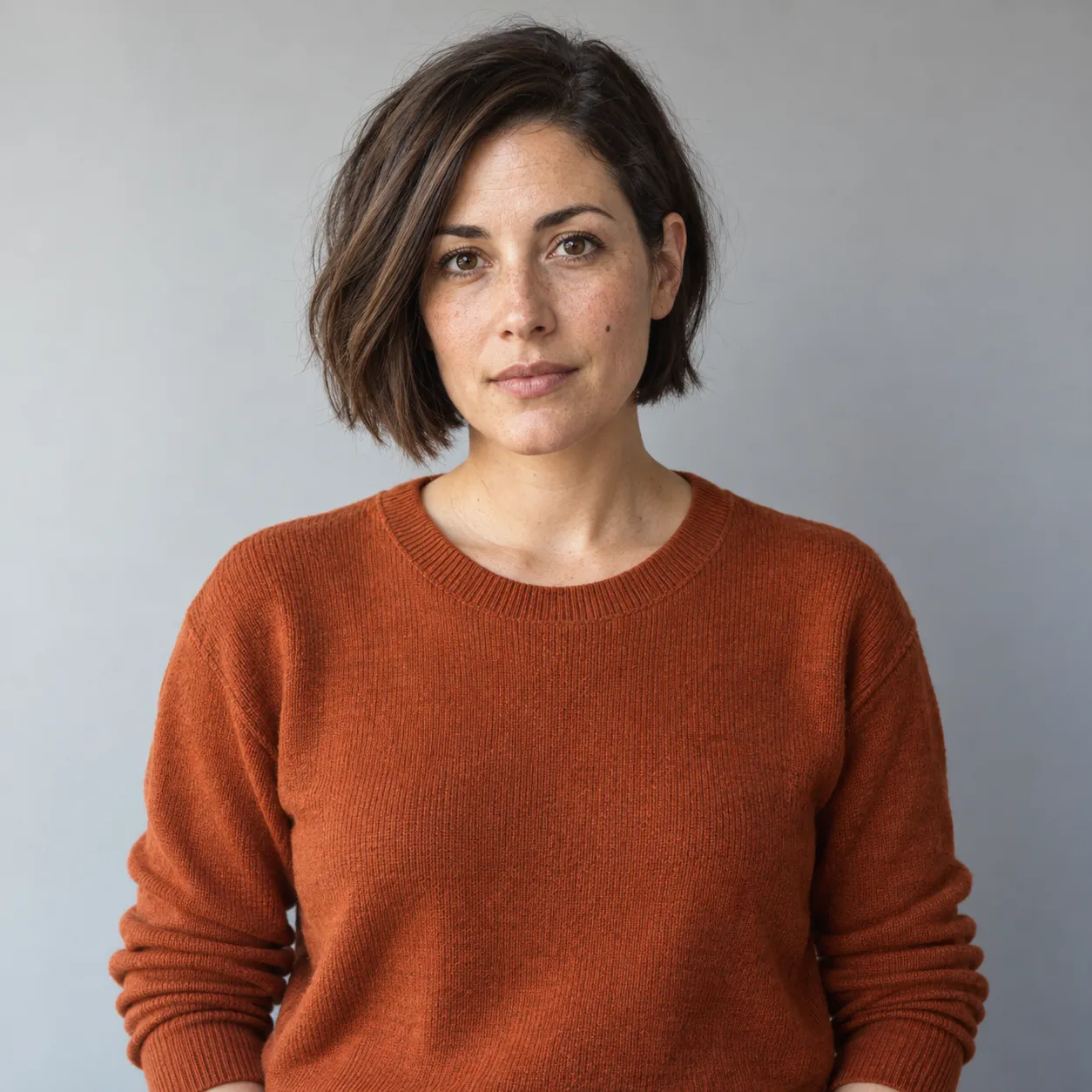
We generated one fictional adult portrait as a source fixture: short brown hair, freckles, a cheek mole, an orange sweater and a gray background. It is not a customer photograph. We then made three image-edit calls, one output per call:
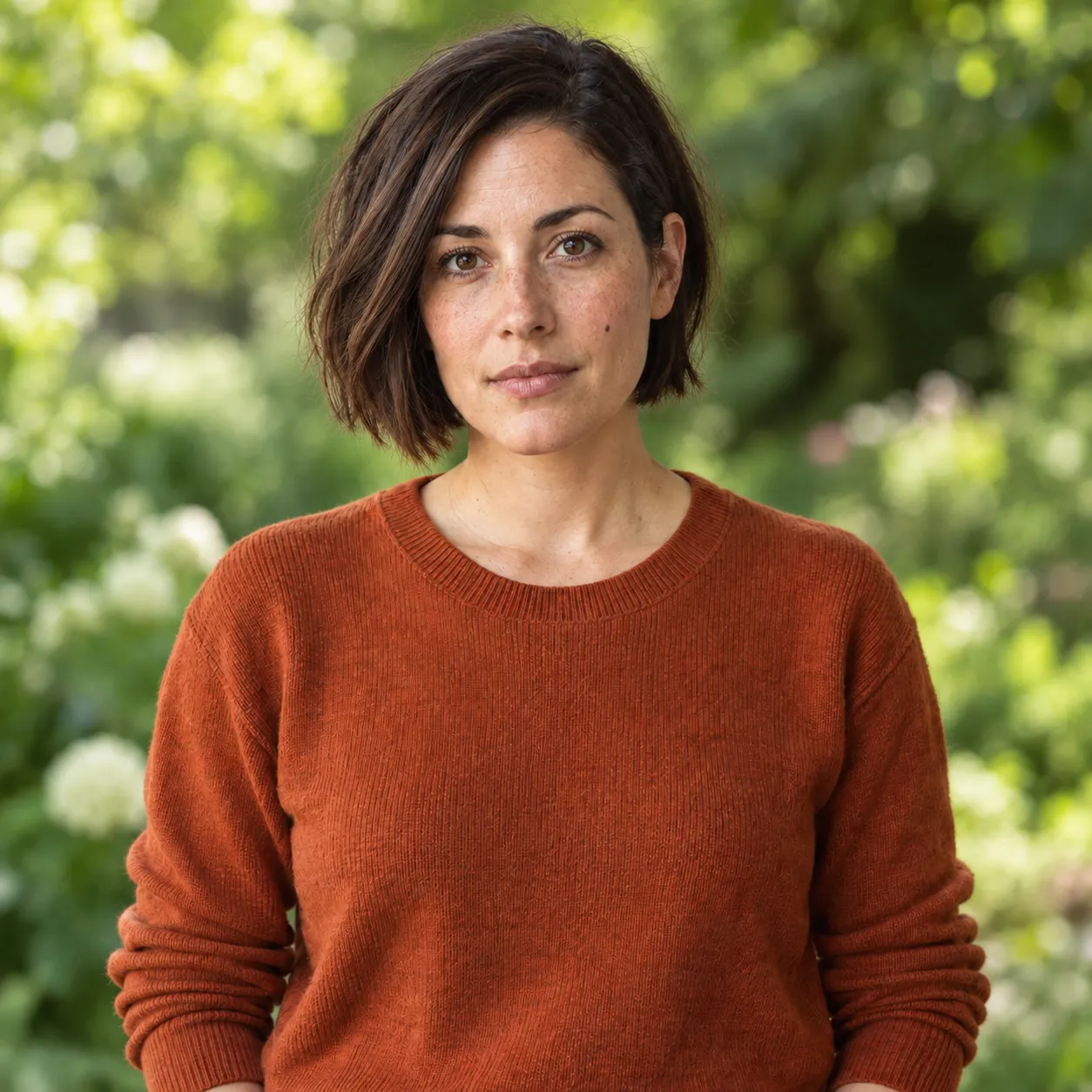
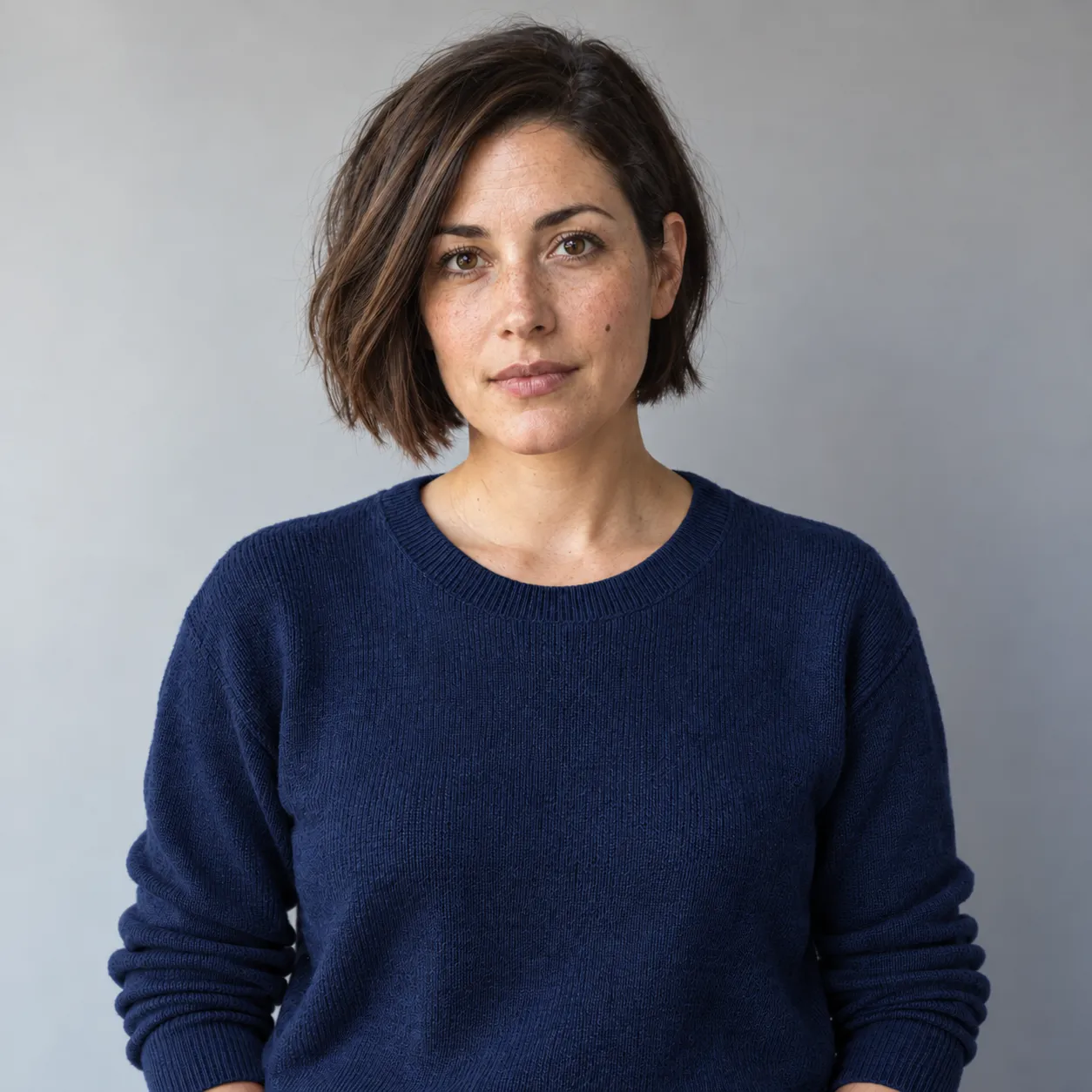
- A: original → blurred green garden, with explicit instructions to preserve the person.
- B: original → navy sweater, preserving the gray background and person.
- C: output A → navy sweater, preserving the garden and person.
There was no drawn selection or API alpha mask in these calls. The tool received one reference image and a text instruction each time. We did not control a seed or measure repeatability. B and C end with different backgrounds, so this is a workflow illustration, not a controlled ranking of one-step versus sequential editing.
Original synthetic portrait
A: background replacement from the original
B: clothing edit directly from the original
C: clothing edit after the background replacement
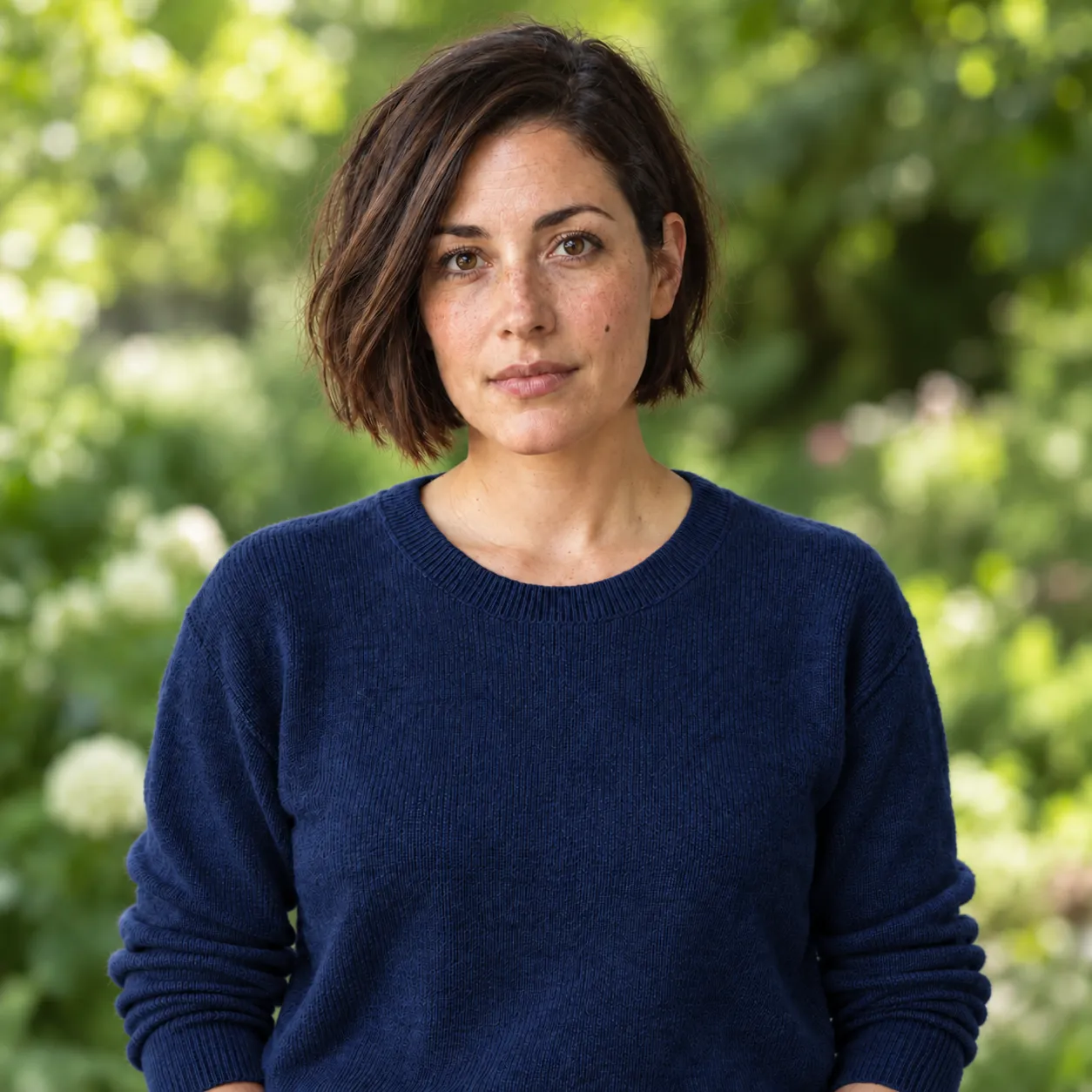
All three outputs delivered the requested broad background or clothing change. In our visual review, the short hair, facial arrangement and cheek mark remained recognizable, while skin and fine facial texture changed. The images should not be described as untouched faces. This is an editorial visual assessment, not biometric identity verification or a measured similarity score.
We also compared decoded RGB pixels in a fixed face rectangle, (450, 150) to (780, 520), against the original. All four files were 1254 × 1254 pixels. None of the three output crops was exactly identical to the original crop. This only rejects exact pixel preservation in that region. It does not measure how much identity changed, explain the mechanism, or establish that one workflow is better. Tiny color changes can fail an equality check even when a person looks similar.
The useful result is practical: instructions to preserve the face did not remove the need for inspection. A successful change of sweater color is not, by itself, a successful portrait delivery.
Review the face before accepting the edit
Place the original and result side by side at the same display size. Then inspect the face at 100% zoom. If the framing differs, account for that before judging feature placement; do not mistake a changed crop for a changed face.
| Check | Look for | Action if it fails |
|---|---|---|
| Face geometry | Eye spacing, jaw shape, nose width, mouth position | Return to the original and reduce the requested change |
| Distinguishing details | Freckles, moles, scars, eyebrow shape, hairline | Reject invented or removed details if fidelity is required |
| Expression and age cues | Smile, eyelids, wrinkles, skin smoothing | Remove makeover or beautification instructions; retry from the original |
| Edit boundary | Hair edges, ears, collar, jaw and neck | Refine the region or repair through a controlled layer mask |
| Whole image | Pose, hands, crop, background objects and light | Reject unrelated changes rather than checking only the face |
A useful record is: input file, exact prompt, tool/interface, date, output file, requested edit achieved, protected details preserved, and accepted/rejected with a reason. This is more informative than writing “looks good” after every generation.
If a retry still changes protected details, stop treating more adjectives as the only solution. The delivery requirement may call for a different editing method.
When the original face must remain unchanged
Use an editor with layers and masks. This is a recommended workflow, not a fourth output tested in the experiment above:
- Open the original and keep an untouched copy. Duplicate it into a foreground layer.
- Mask around the person, keeping the entire face and any other protected area fully opaque. Refine hair and clothing edges without painting over the face.
- Put a replacement background on a separate layer underneath. Generate or obtain the background separately if needed.
- Adjust the background to fit the subject’s light and perspective. Avoid global filters, transformations or resizing that would alter the protected face.
- Export a lossless image at the original dimensions and color settings. Reopen it and compare the protected region. Preserve the layered project for corrections.
This method makes preservation explicit because the original pixels remain on the foreground layer. It still requires correct masking and export settings. JPEG compression, color conversion, resampling or a semitransparent mask can change pixel values, so verify the final file rather than assuming layers alone prove equality.
For a clothing replacement, protect the head separately and restrict the garment edit below it; inspect the neck and collar transition. If the job demands a new pose or a new view of the face, exact reuse of the original pixels may no longer satisfy the requested composition. Clarify that tradeoff before editing.
Where to continue
For the API side of local editing, our GPT Image mask and protected-pixel guide explains an actual product-image test and why a mask needs its own validation. Its product result does not establish face-preservation performance.
You can also explore image tasks in Ofox Agent. Ofox is the publisher of this guide; the experiment above did not test that route and makes no claim that switching to it preserves faces better. Whichever interface you use, keep the original, make the permitted change explicit, and accept the result only after checking the protected details.