Moving from Sora? Rebuild a video workflow in Ofox
Use the official Sora shutdown dates, organize existing assets and prompts, then rebuild a repeatable single-shot video workflow in Ofox without code.
 Ofox
Ofox 
If you used Sora for creative work, move your source material and shot instructions into a reusable folder before choosing a replacement. Then rebuild one representative shot in Ofox Video, using the available model and input controls. Treat the result as a new generation, not a conversion of the old Sora project.
OpenAI states that Sora’s web and app experiences ended on April 26, 2026, while the Sora API is scheduled to end on September 24, 2026. These are different dates. Its official discontinuation notice also provides the content-export route; check that notice for current availability rather than assuming old app access still works.
This is a creator workflow, not an API migration guide. The Ofox interface was checked on September 21. The cafe images are separately generated concept artwork for a hypothetical exercise, not recovered Sora frames or Ofox generation results.
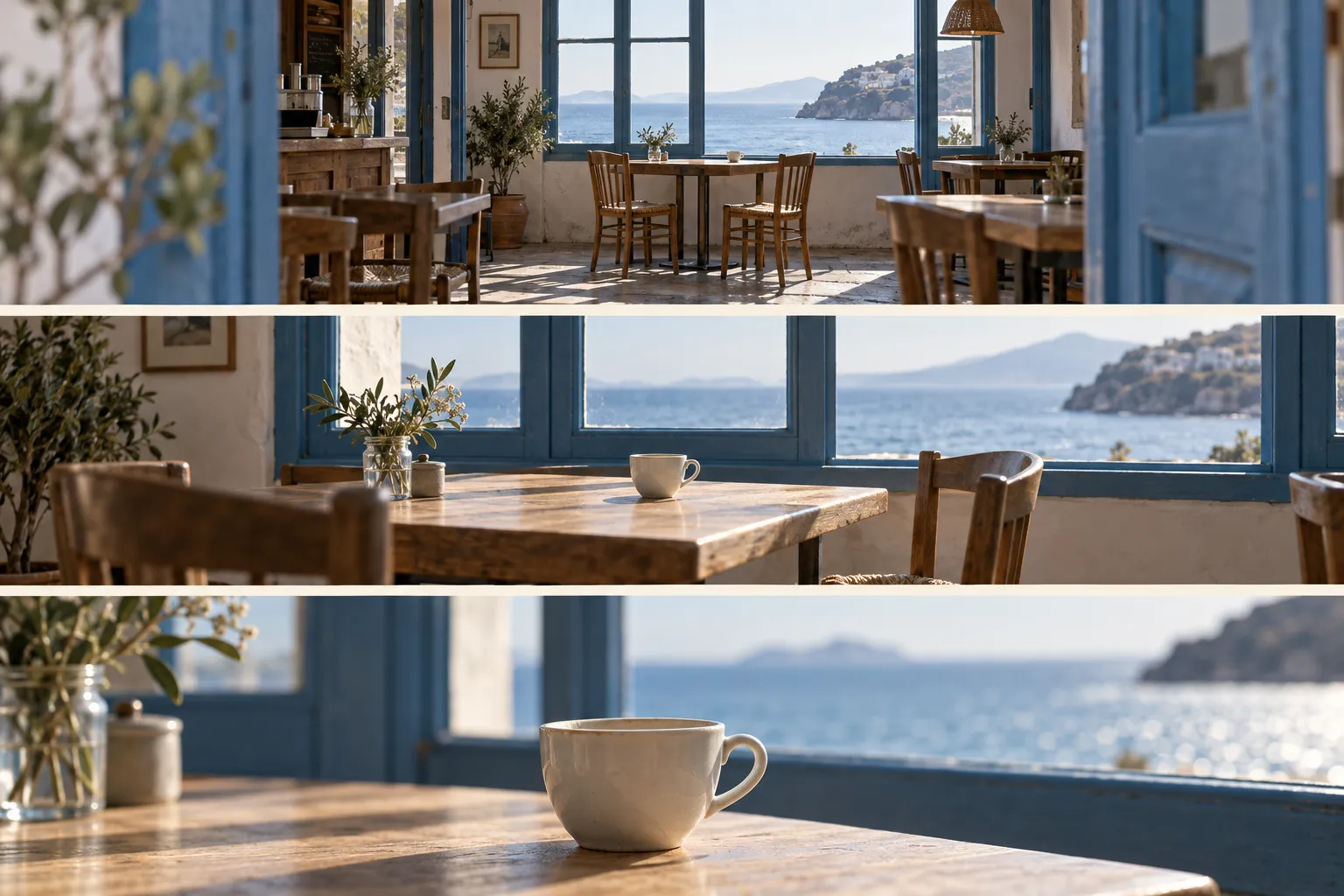 Three shot ideas for rebuilding a brief. These stills do not demonstrate a continuous camera move or consistency across actual video generations.
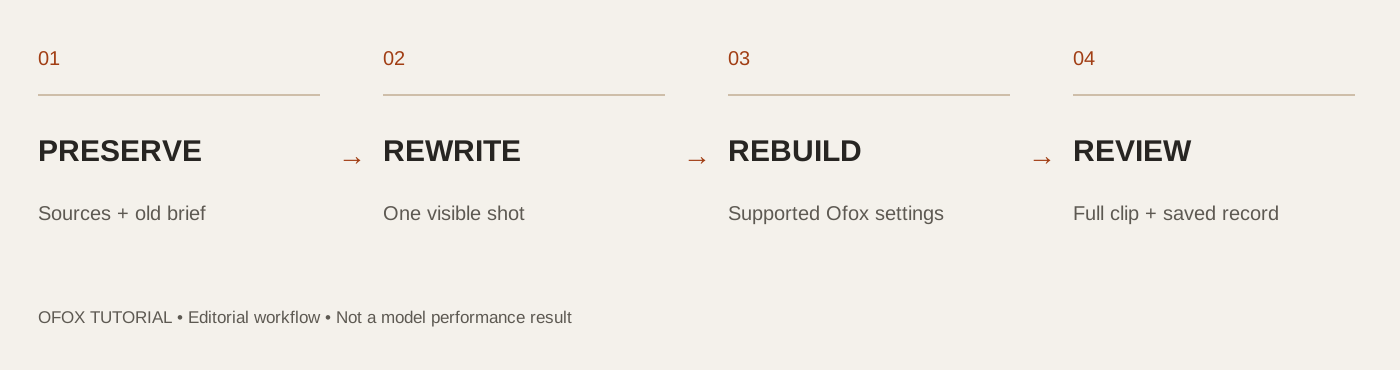 Editorial checklist for this guide; not measured model performance.
1. Collect what you can actually reuse
Preserve existing downloads, prompts, source photographs, audio you have rights to use, and your editing project. Follow OpenAI’s official export instructions for Sora content you still need to retrieve. This guide does not promise recovery after an export window closes or imply that Ofox can retrieve an old Sora account.
Put each shot’s information in one record: the old prompt, the intended purpose, aspect ratio, target length, reference files and the most important constraint. Keep any old output as a comparison asset. Its appearance can help you explain the goal even when another model will not reproduce it exactly.
Download the shot-rebuild worksheet. It has separate fields for source files, the old brief and the new attempt, so migration does not erase the history of the original work.
2. Rewrite the prompt as visible decisions
Long prompts often combine scene description, camera instructions, editing requests and several different moments. Extract the decisions that matter to one shot. For the cafe exercise, those are a quiet room, a table by a blue-framed window, a single cup, a gentle push-in and no cuts.
| Keep as the brief | Reconsider for the new tool |
|---|---|
| Subject and scene | Model-specific prompt syntax |
| Camera intent | Available duration and aspect ratio |
| Lighting and mood | Reference-image behavior |
| Features that must remain unchanged | Audio, output format and cost settings |
| Purpose of the shot in the edit | Any unsupported feature or old preset |
Do not paste old API JSON into a visual prompt box. For developer migration, consult the current Ofox video API documentation and verify the actual endpoint and field mapping separately.
3. Choose text or image input intentionally
For an exploratory scene without a precise reference, Text mode is a reasonable place to describe the shot. When composition or a specific object matters, Image mode lets you supply an approved reference. Keep multi-panel storyboards as planning material; feed a single image for a single shot unless the selected model’s documented input behavior says otherwise.
The checked Ofox video interface listed Seedance, Wan, HappyHorse and MiniMax families. Searching its selector for Kling or Veo returned no match in this session. Availability can change; a model discussed in a migration article is not automatically available inside your current creation tool.
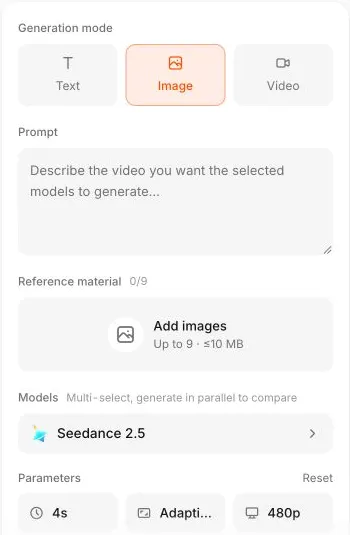 The verified creation controls. Select the mode that fits the source material you actually have.
For the hypothetical cafe shot:
One continuous view of a quiet seaside cafe in soft morning daylight.
A pale wooden table with one plain ceramic cup stands beside a blue-framed
window. The camera moves slowly forward a short distance. Keep the table,
window geometry and cup stable. No people, cuts, readable signs or logos.
If you upload a real reference, replace the opening description with “use the reference scene” and specify only the movement and the details to preserve. A reference does not guarantee identical geometry, so the later inspection still matters.
4. Rebuild one shot before the whole project
Select one model, review its supported settings and inspect the estimate before generating. Do not transfer an old duration simply because it was accepted elsewhere. A model’s native capability, Ofox’s current input adapter and the options exposed in your account are separate constraints.
A useful first shot has a clear pass condition: the blue window frames remain straight, the cup stays on the table, and the camera performs one restrained move without a cut. If it fails, record whether the failure is composition, motion, object identity or technical execution. Rewrite only the relevant part of the prompt.
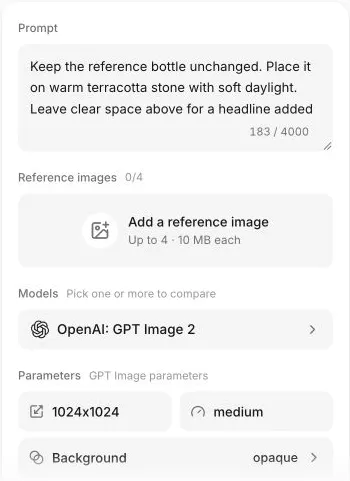 You can prepare a reference in Ofox Image first. This screenshot shows the tool layout; replace its unrelated bottle prompt with your own scene brief.
A new reference still is a new creative decision. Compare it with the old project’s requirements before animating it. For existing branded work, do not let a visually appealing substitute silently change the product, person or setting the project is meant to depict.
5. Compare an alternative only when the settings make sense
Ofox offers a multi-select mode for video models. That can help compare a shared brief, but it does not make every setting compatible. During the interface check, Seedance 2.5’s four-second default produced a warning for Wan 3.0 that the model did not support four seconds.
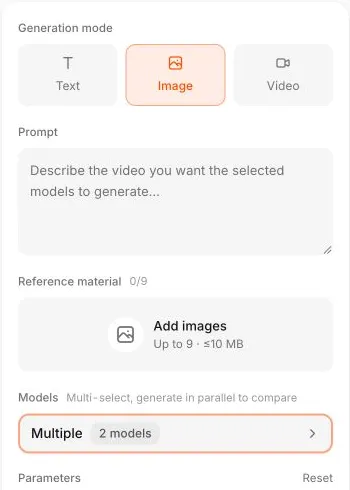 Two-model setup only. This selection still needs a compatibility check; the screenshot is not a successful side-by-side generation.
Use settings supported by both models, or run separate valid configurations and clearly record the differences. Do not call the latter a controlled benchmark. See the Ofox model-comparison tutorial for the worksheet and rejection rules.
6. Preserve the new workflow as well as the output
Preview the full clip, download accepted material and place it beside the source reference and prompt. Record the model, input mode, settings and date. Ofox Projects can help organize work, but your editing project and local source archive remain important for reuse.
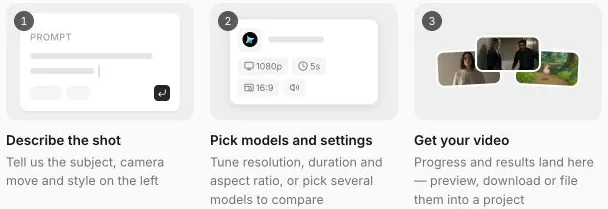 Result-handling instructions in the actual interface. Final sequencing, captions and music are handled in your editing software for this workflow.
Rebuild later shots only after the first one meets its brief. The aim is a maintainable production method with known inputs and review criteria, not an unsupported promise that a particular model will reproduce every Sora output.
Frequently Asked Questions
- Does Ofox import Sora projects automatically?
- Automatic Sora project import was not demonstrated in this check. The workflow manually reuses source assets and rewrites shot instructions for a new generation.
- Does the September 24 date mean the Sora app still works until then?
- No. OpenAI gives separate dates: April 26 for the web/app experiences and September 24 for the API, both in 2026. Check its current notice for export instructions.
- Which model is the closest replacement?
- This guide does not establish a universal winner. Use a representative shot from your own work, a valid configuration for each candidate and explicit acceptance checks.