Use GPT Image 2.5 for UI mockups with consistent text
Create a UI image brief, preserve layout during edits and check exact copy with GPT Image 2.5. Separate a visual mockup from a working interface.
 Ofox
Ofox 
Use GPT Image 2.5 to explore an interface as an image, then check layout and exact text before turning the design into a working UI. The generated picture is not HTML, a Figma component tree or an accessibility-tested application. Buttons drawn in the image have no interaction behavior.
For designers and developers evaluating a dashboard or mobile screen, the useful output is a reviewable visual direction. This walkthrough provides original prompt examples and an inspection checklist. It does not report a new Ofox generation test or promise perfect typography.
Describe an interface someone could use
Name the screen’s job, hierarchy and required copy. A description such as “beautiful futuristic dashboard” leaves most decisions to the model. A brief with a primary action, content sections and exact labels gives you something concrete to review.
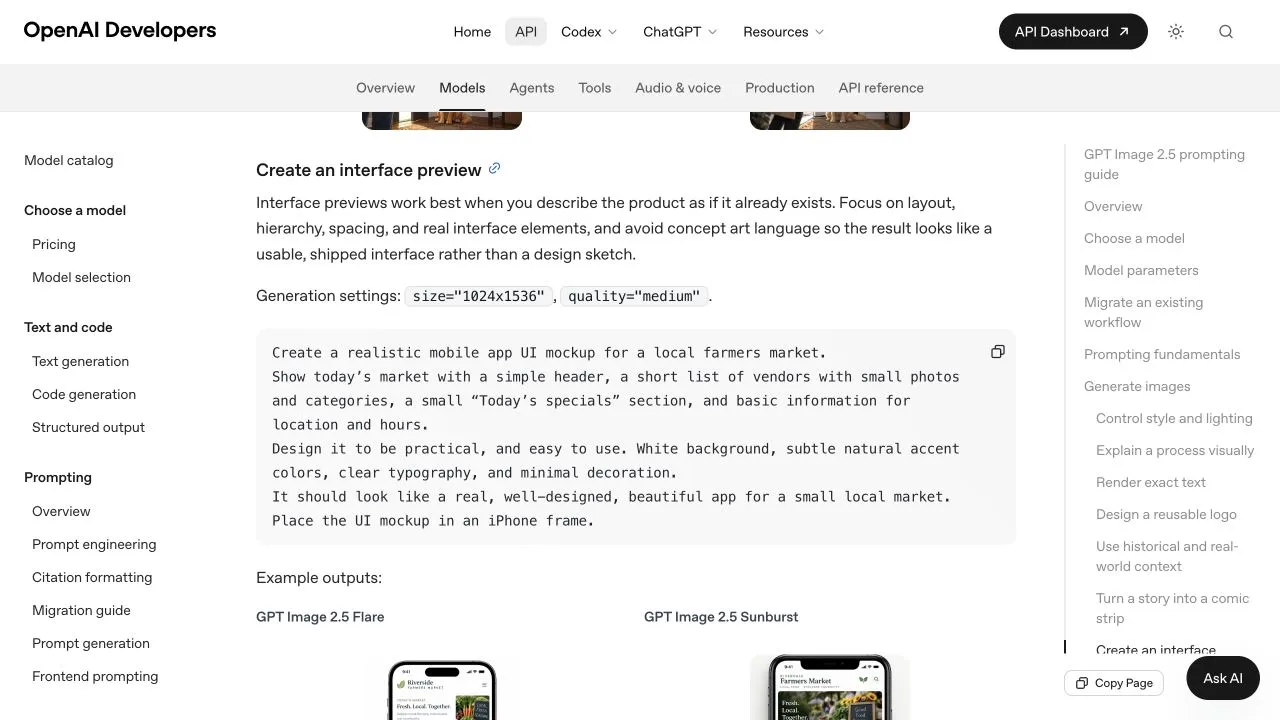
Screenshot of the official interface-preview example, captured September 16, 2026. The example and outputs belong to OpenAI’s documentation; they are not our test results.
Here is an original prompt to adapt:
Create one desktop UI mockup image for a project dashboard.
Use a pale background and a clear hierarchy, without decorative charts.
Left navigation: Overview, Projects, Settings.
Main heading: Project overview.
Under it, show three project rows with status and owner columns.
Place one primary button labeled New project at the upper right.
Render only the requested labels, once each, with readable contrast.
Keep generous spacing and align the rows and columns consistently.
Do not add browser chrome, a device frame or invented usage statistics.
Keep model, dimensions and quality in the request settings. The API access guide covers the request path; the size guide explains valid dimensions. Do not expect writing a size in the prompt to replace the API parameter.
Choose a model before changing everything else
OpenAI positions Flare for speed and Sunburst for demanding quality. Treat that as a starting point, not a guarantee for your screen. The Flare versus Sunburst guide includes a small historical comparison and explains its limits.
Keep the prompt, reference and explicit quality setting unchanged for the first comparison. If the output misses a critical requirement, record the miss before changing the prompt. Otherwise, you will not know whether the next result improved because of the model or the instructions.
No UI-specific speed, cost or success-rate measurement is claimed here. A prior English lettering example is not evidence that a dense dashboard or Japanese interface will render correctly.
Edit one visible decision at a time
Save the accepted image before each revision. Supply that image as the reference for an edit, name one change, and restate the details that should remain fixed.
Change only the primary button label from New project to Create project.
Keep the navigation labels, heading, project rows, column alignment,
button position, colors and spacing unchanged.
Do not add icons, labels or new sections.
This is an example instruction, not a tested preservation guarantee. Compare the whole output with the previous image, not only the requested button. An edit may fix one label while moving a column or altering another word.
For a multi-step review, keep an accepted version and a short record of each change. If a region must remain pixel-identical, use a conventional editor to composite the approved change. Prompting alone is not a pixel-lock mechanism.
Check text and layout separately
| Check | Pass condition for this example |
|---|---|
| Required labels | Each requested string appears exactly once |
| Hierarchy | Heading and primary action are easy to identify |
| Repeated rows | Columns align and spacing is consistent |
| Unrequested content | No invented numbers or extra navigation items |
| Edit preservation | Unchanged elements match the accepted reference closely enough for the task |
Read small labels at the intended display size. OCR can help locate suspicious text, but it is not a substitute for visual inspection or language review. Check truncation, spelling and duplicate labels separately.
Hand off a specification, not only a picture
Record typography choices, spacing rules, component states and behavior outside the image. A developer still needs to implement keyboard access, focus, error states, responsiveness and real data. A mockup screenshot does not verify any of those properties.
If exact copy is essential, another workflow is to generate visual assets and compose text with normal UI components. That reduces dependence on rasterized wording while keeping the image model useful for exploration.
Frequently Asked Questions
- Can GPT Image 2.5 return a working UI from this prompt?
- This image workflow returns a visual mockup. Building an interactive application is a separate implementation task.
- Will an edit preserve every other pixel?
- No such guarantee is made. Compare each result and use an editor when unchanged regions must remain exact.
- How should I estimate cost?
- Use actual usage for the selected route and include corrections that are billed. The image pricing guide separates billing categories; a fast output does not automatically mean a cheaper accepted design.