Verify a PDF Produced by Codex Before You Deliver It
Check PDF page count, content markers, links and layout with a reproducible two-page fixture, including a missing-page test that must fail.
 Ofox
Ofox 
A PDF is ready to deliver only when the saved file opens, contains the expected pages and content, and survives a visual check. A successful generation command, an export notification or a screenshot of the source document proves less than that.
This guide provides a two-page test PDF, the script that created it, a validator and a deliberately incomplete file. In our October 18, 2026 file-based run, the complete PDF passed six groups of checks; a one-page copy failed the page-count and content-marker checks. We also rendered and inspected both complete pages. No native application export or viewer reopening was tested. “Reopened” here means parsed from the saved PDF, not clicked open in a desktop app.
That distinction matters when a Computer Use task stops at an application permission. OpenAI’s Computer Use documentation recommends structured integrations when they fit the task. After the user chose to proceed without the blocked app, we used file tools for this separate validation workflow. This does not repair or bypass the app permission.
Ofox publishes this guide. The fixture requires no Ofox API account and contains no customer document.
Define the deliverable before generating it
Write the acceptance criteria before running the export or generator. Otherwise, it is too easy to accept whatever file happened to appear.
| Property | This fixture requires | Why it matters |
|---|---|---|
| Format | PDF, readable by a parser | A .pdf suffix alone is not proof |
| Length | Exactly two pages | Detect a partial export |
| Page identity | EXPORT-TEST-001 on page 1 and EXPORT-TEST-002 on page 2, once each | Detect missing or duplicated content |
| Dimensions | A4 portrait, within a small numeric tolerance | Catch the wrong page setup |
| Text | English and the Chinese test phrase on both pages | Detect a missing language block |
| Link | https://ofox.io/blog/ on both pages | Check the stored annotation target |
| Appearance | No clipped text, missing glyphs or overlapping table rows | Text extraction cannot validate layout |
| Source handling | Keep the source; write a distinct output | Allow review and recovery |
For real client work, replace the identifiers with known headings or required sections. Do not impose two pages or A4 on a deliverable with different specifications. These are the fixture’s requirements, not universal PDF quality rules.
Use the same output contract for a tool or an app
This prompt works as an acceptance specification. Select the actual production route instead of claiming that a file generator and an app export are equivalent tests:
Create or export the specified document to <new-output-path>.
Use <approved-file-tool-or-app>. Preserve the input file and do not
overwrite an existing output. Record the actual tool and settings.

The result must have two A4 portrait pages. Page 1 must contain
EXPORT-TEST-001 once; page 2 must contain EXPORT-TEST-002 once.
Each page must contain the required English and Chinese text,
a readable table, and a link to https://ofox.io/blog/.

Reopen the saved PDF with a parser. Check format, page count,
page-specific identifiers, dimensions, text and link annotations.
Render both pages and inspect layout. If a native viewer is used,
record that as a separate check. Do not describe parser validation
as desktop UI testing. Report failures and the final output path.
An interrupted operation needs a different response from an explicit failure. Before retrying, check whether the target file exists and whether it is complete. If it is already valid, another export may only create confusing duplicates. If it is partial, keep enough evidence to explain the failure and generate a fresh version at a distinct path.
Reproduce the file test
Download the fixture and scripts, then extract the archive into a new directory. It contains scripts/make_pdf.py, scripts/check_pdf.py, and the validated result in output/pdf/verified-handoff.pdf. The generator refuses to overwrite that existing result. Validate the supplied PDF first; to regenerate it, use a fresh copy of the package with the output moved aside to a backup location.
A local Python environment needs ReportLab to generate and pypdf to validate:
python3 -m venv .venv
source .venv/bin/activate
python -m pip install reportlab pypdf
python scripts/check_pdf.py output/pdf/verified-handoff.pdf
On Windows, activate the environment with .venv\Scripts\Activate.ps1 in PowerShell. The commands above are reproduction instructions; our run used already available local Python libraries, not a newly tested installation on every operating system. Creating the environment does not require a model API key, though package installation needs network access.
After moving the supplied PDF to a backup path in your own extracted copy, run:
python scripts/make_pdf.py
python scripts/check_pdf.py output/pdf/verified-handoff.pdf
python scripts/check_pdf.py evidence/negative-one-page.pdf
The last command should print passed: false and exit with code 1. That expected rejection is the negative-test result, not an installation failure. To render locally, install PyMuPDF and save every page as an image:
python -m pip install pymupdf
python -c "import fitz; d=fitz.open('output/pdf/verified-handoff.pdf'); [p.get_pixmap(matrix=fitz.Matrix(1.2,1.2)).save('page-%s.png' % (i+1)) for i,p in enumerate(d)]"
Open both generated PNGs at a readable size. Alternatively, inspect every page in a PDF viewer, recording that viewer as the actual validation route.
The validator exits zero only when its six check groups pass. Read the JSON result rather than looking only for a file in the folder. For a compact independent check:
from pypdf import PdfReader

reader = PdfReader("output/pdf/verified-handoff.pdf")
assert len(reader.pages) == 2
for number, page in enumerate(reader.pages, start=1):
    text = page.extract_text() or ""
    assert text.count(f"EXPORT-TEST-00{number}") == 1
The downloadable validator adds the cross-page identifier count, PDF header, A4 tolerance, Chinese phrase and link checks. Even that is a fixture validator, not a PDF security scanner, accessibility audit or universal font test.
Inspect the actual rendered pages
Our PDF was generated with ReportLab, reopened with pypdf, and rendered with PyMuPDF. The render below is an image of the actual PDF page, not a screenshot of Codex, a browser or a desktop export dialog. The Chinese line is intentional test content inside the document, not a localized product interface.
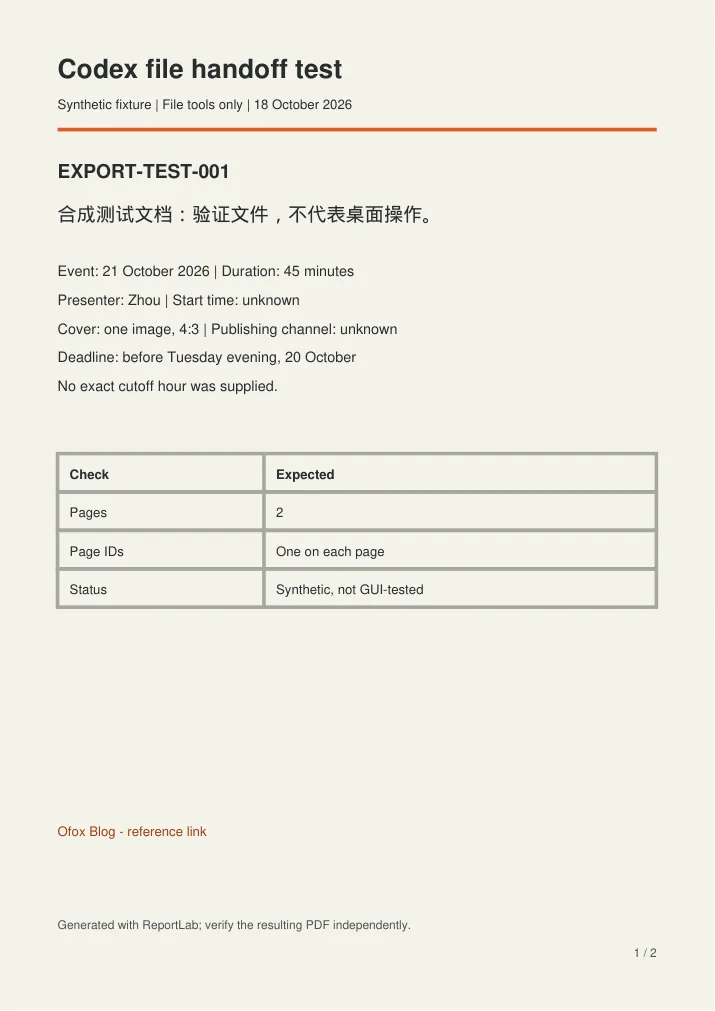
The first page contains the workshop facts; the second contains the delivery checklist. Both include their own identifier, table, footer and link. The source and generator remain separate from the output, so rendering does not modify the input.
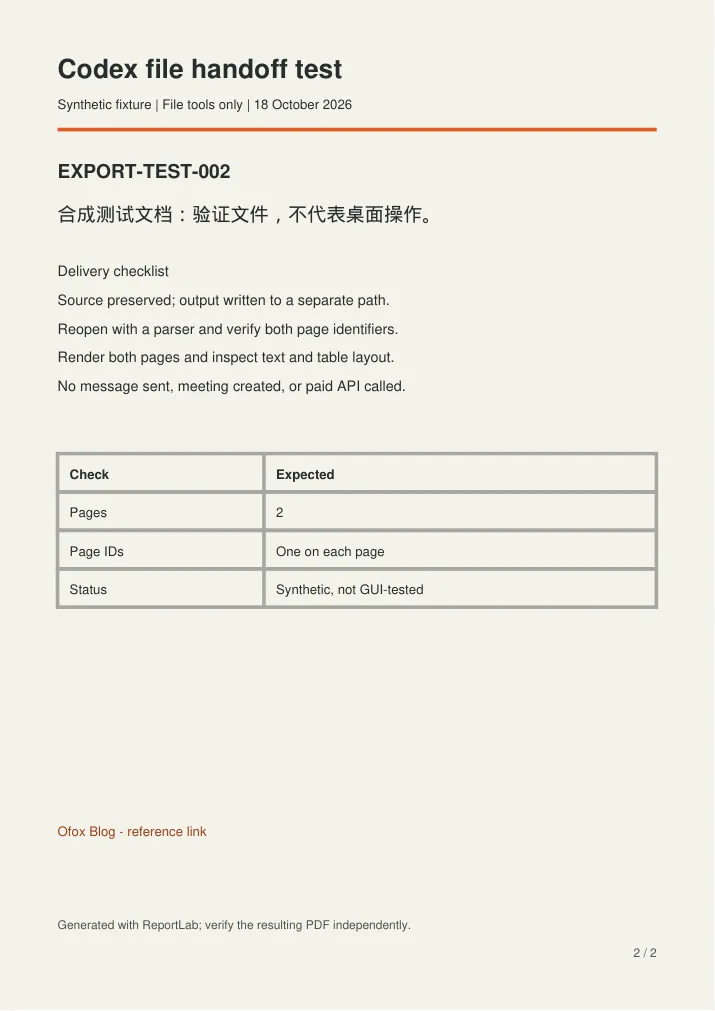
Inspect every page at a readable size. Searchable text can exist outside the visible page or under an overlapping object. Conversely, a document made entirely from images can look correct but fail text extraction. A text-extraction failure is not automatically a blank page: inspect the rendering, determine whether image-only content is acceptable, and avoid claiming searchable text if it is absent.
The saved link annotation proves its target address, not that the destination is available or trustworthy. Check important destinations separately before delivery. For this fixture, the Ofox blog link is only a harmless reference target.
Make a bad file fail deliberately
We created a copy containing only the first page and ran the same validator. It returned passed: false; the page count and page identity checks failed. The remaining checks could still pass because the surviving page had the expected dimensions, text and link.
This negative test matters: a validator that only checks whether the PDF opens would accept a cleanly saved one-page truncation. Checking only that some required text appears somewhere can also miss a duplicated page.
| Local test | Result | What it supports |
|---|---|---|
| Complete two-page fixture | Six groups passed | This saved file matched those structural requirements |
| One-page copy | Rejected | The validator detected this missing-page case |
| Both complete pages rendered and inspected | No visible clipping or overlap found | Layout looked correct in this renderer |
| Native app export and viewer opening | Not tested | No desktop automation success claim |
One rejected fixture does not prove every corruption will be detected. A missing font, wrong hyperlink, encrypted file or malformed PDF may fail differently. Expand the fixture set to match the failure modes that matter for your delivery.
Report completion in terms a recipient can verify
Use a short delivery record: final path, file size or hash, generation route, page count, content checks, rendering result and remaining limitations. A hash identifies the exact file checked; it does not certify its meaning or visual quality.
If the user specifically needs a native application’s export behavior, file-tool success does not satisfy that requirement. Record the file validation as completed and the app test as untested. If the actual goal is a verified PDF and file tools are authorized, this route can finish that part without pretending to have clicked an Export button.
For preparing the source material, see turning messages into a Codex action plan. If the blocker is screenshot capture rather than PDF structure, use the Windows Computer Use capture diagnostic.